Manage Modes
The Manage Modes window allows you to view the default fixed factors for all default modes, including those created by others in your account, and to update the values for any custom mode that you created.
The page shows all modes, both default and custom, with a checkbox that allows you to hide those modes that you do not need. For example, if you only deal with highway projects, then you can hide modes that are appropriate for air, marine, and rail, to reduce the clutter on your Modes page.
In addition, you can see who created the custom modes on the Contract you are using. In the figure below, the custom mode "Auto - Autonomous Vehicles" was created by user "Demo Account." If you are logged in as "Demo Account," you will see the Edit button to edit the defaults of the mode. Anyone who uses this mode after the change will see the new values. Older projects will use the previous values.
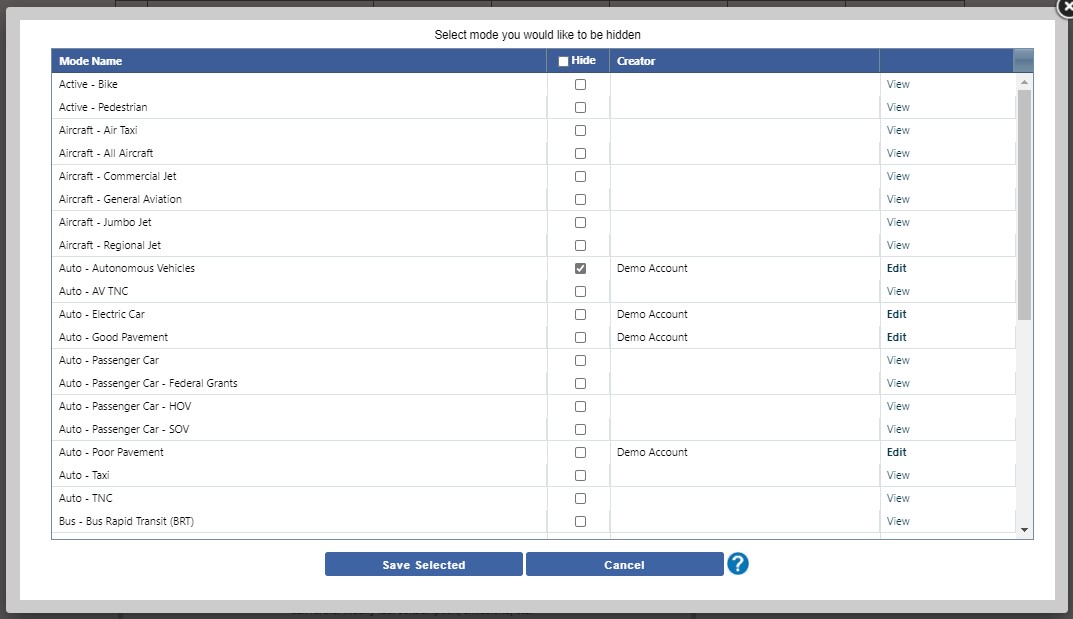
Once you have made your changes, click the Save Selected button to return to the Modes page.
You may also view the default values for the TREDIS default modes or custom modes created by users in your account. If you are the owner of the custom mode, then you are able to edit the default parameters.
Select the View link or Edit link as appropriate, which will open a window with the defaults to adjust. This interface is the same as the one for the Adjust Mode Factors interface, except the defaults for each new project created with the mode will use those as the initial defaults.