Compare Projects
The Project Comparison feature allows you to compare analysis results across up to 30 selected projects. It can be used as a check on the validity of your inputs to TREDIS and to easily find significant differences with respect to economic impact and benefit costs.
The left side of the screen is a menu that allows you to move between comparison reports.
Project Selection
When you first click on the Compare Projects button, a new window opens which lists all projects that have been analyzed for the current contract and project group. At the top of the screen, you are able to select another contract or group if they exist, which will repopulate the project list.
If you do not see a project in the list, go back to the project screen and check to see if the project has been analyzed. You may either click on results to run the analysis, or if you have multiple projects to analyze, use the multi-run feature within group options on the project page.
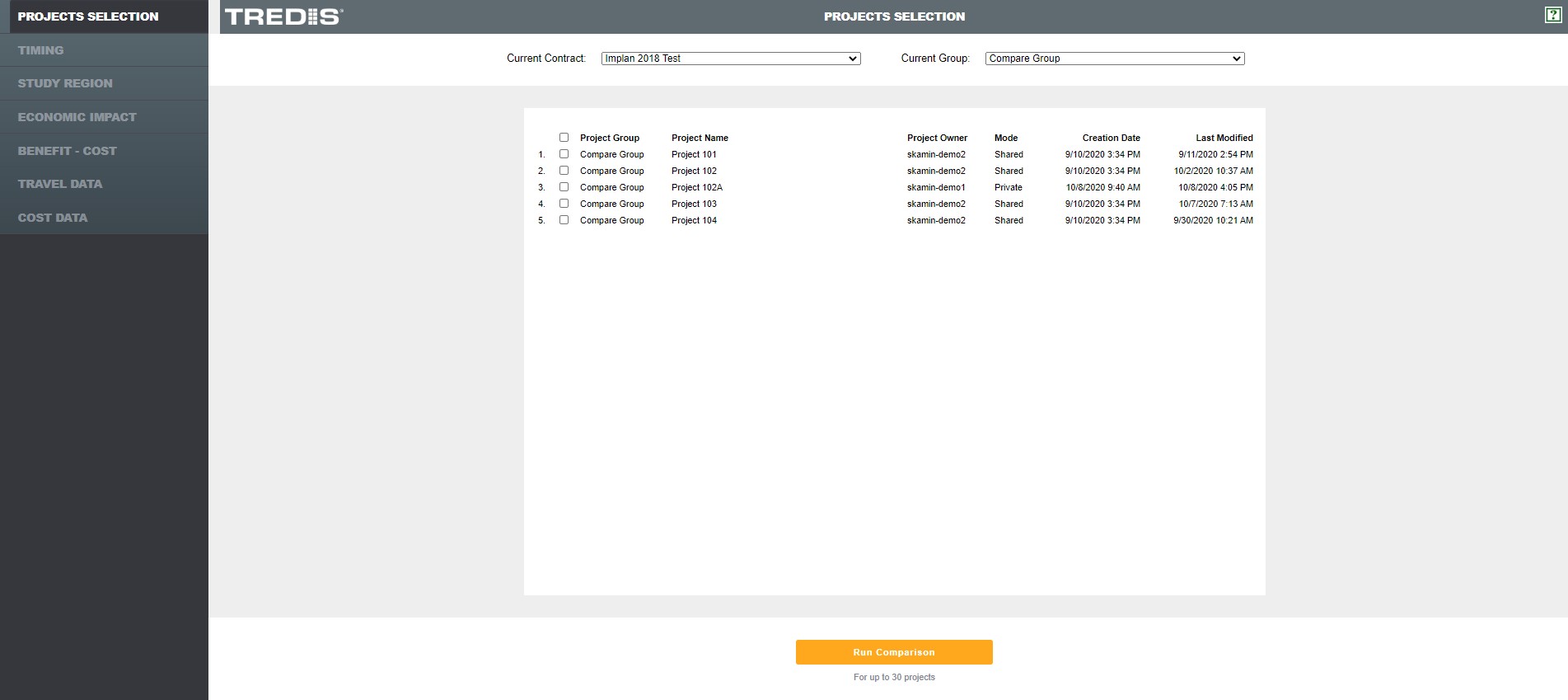
Select the projects you wish to view, up to a maximum of 30, and then click on the Run Comparison button. You will then be directed to the Economic Impact Comparison Screen.
Economic Impact
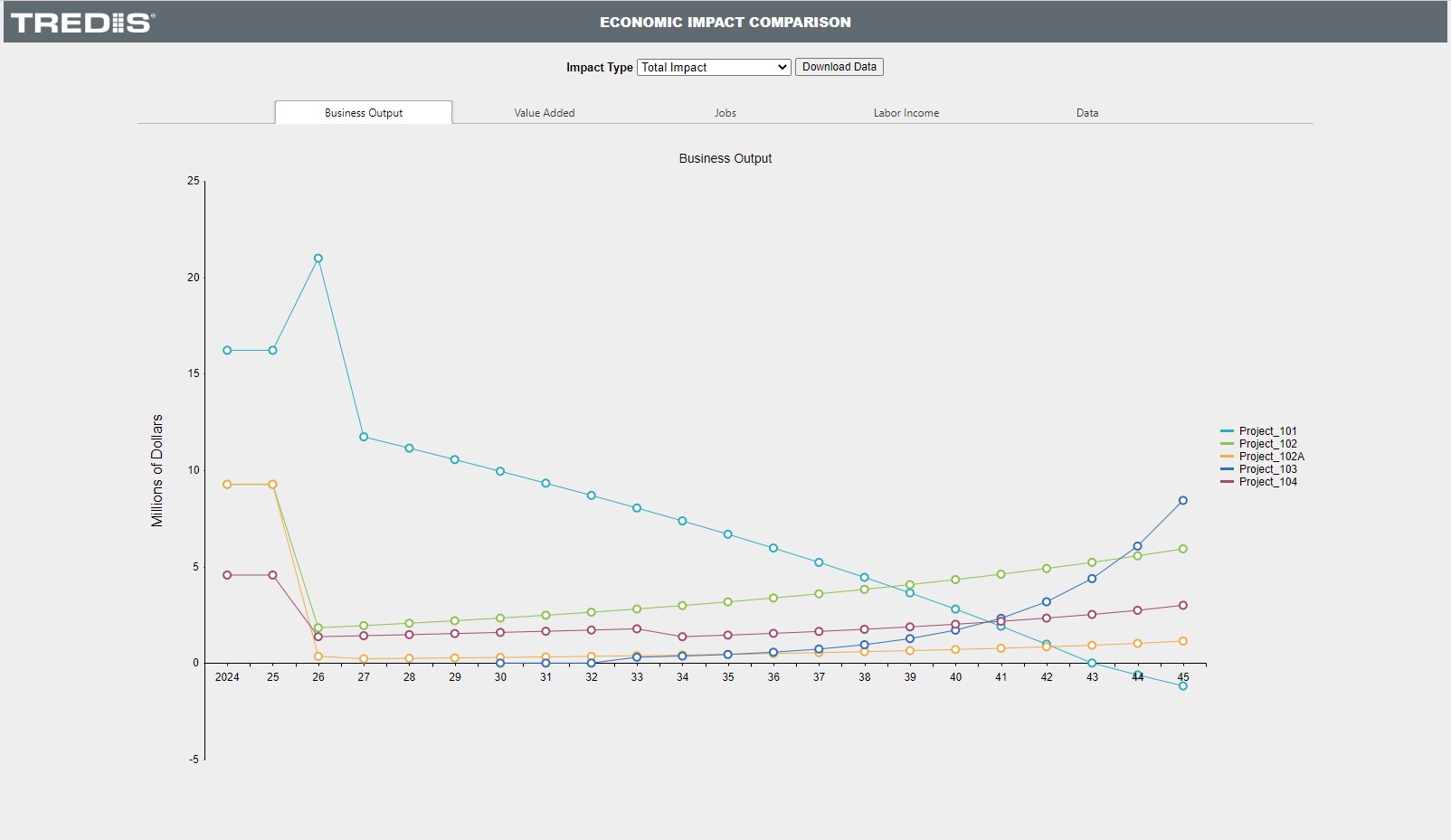
As seen on the picture above, you may select the Impact Type from the dropdown menu, to show the total impact, or filter by construction, operations, market access, or contingent development. Clicking on the Download Data button will export the data used in creating the graphics on the page for the impact type selected.
The chart on the screen will present business output ($M), value added ($M), Jobs, and Labor Income ($M) over time, depending on which tab is selected. The data tab shows a simple table of the results for the results year selected in the analysis settings.
Benefit Cost
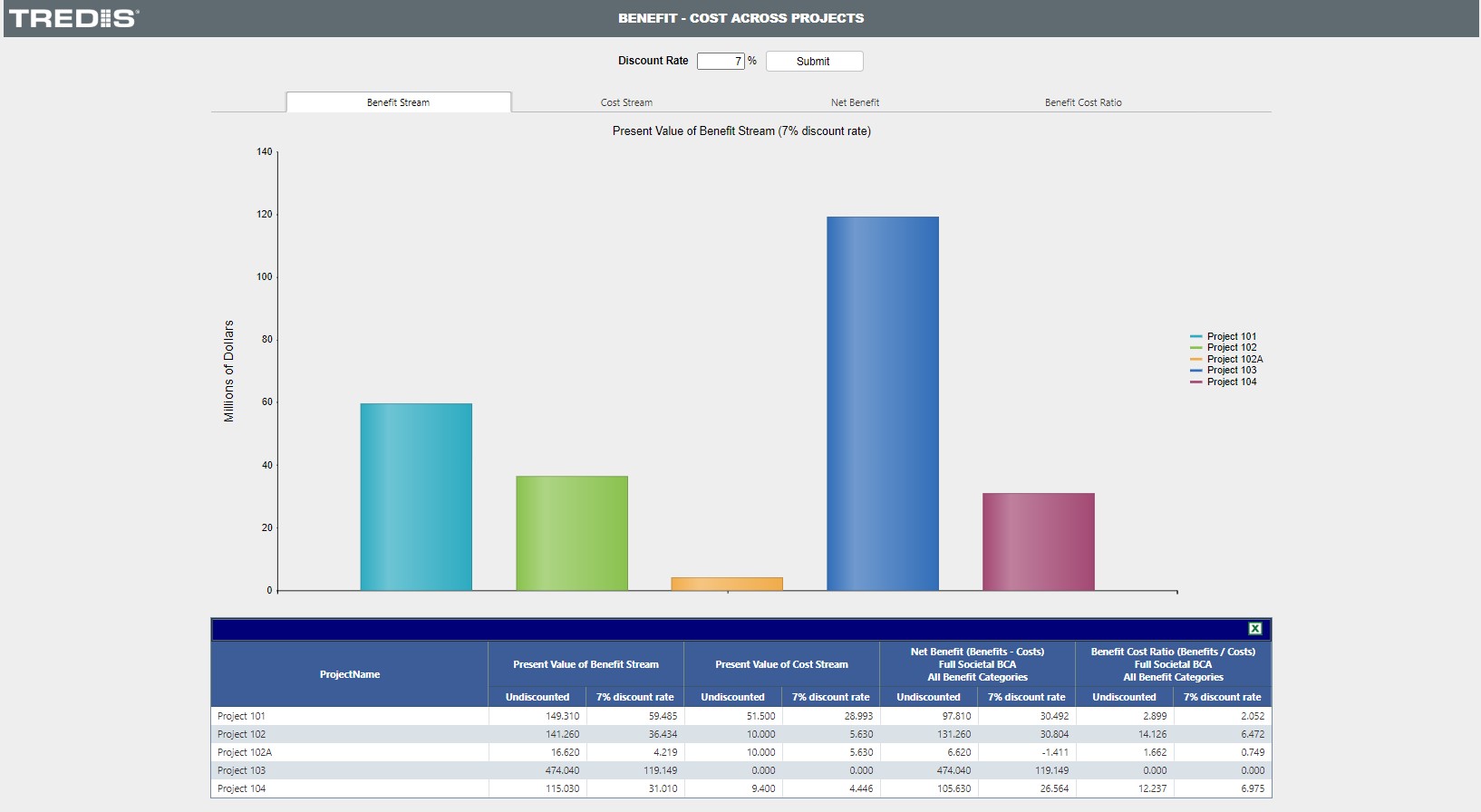
Clicking on the Benefit-Cost tab on the left menu presents the graphical view of the Benefit Stream, Cost Stream, Net Benefit, and Benefit Cost Ratios, with a table of the data at the bottom of the screen.
At the top of the screen, you may change the discount rate by entering a value and clicking the submit button. Entering 0 will show the undiscounted values.
Travel
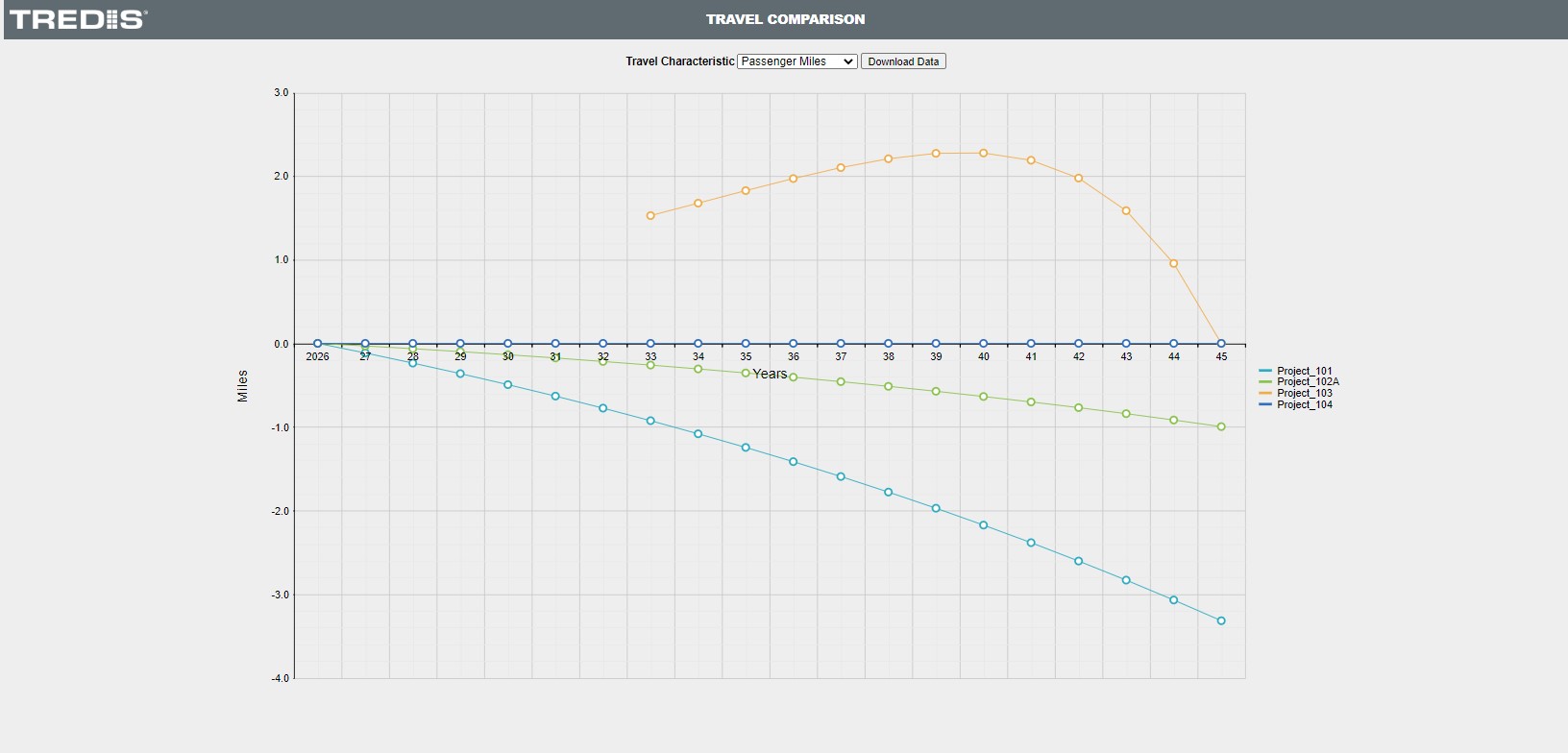
The Travel Comparison tab shows the travel inputs (difference of project less base) over time for
- Gross Vehicle Trips
- Passenger Trips
- Freight Ton Trips
- Gross VMT
- Passenger Miles
- Freight Ton Miles
- Gross VHT
- Passenger Hours
- Freight Ton Hours
Select which view you wish to see using the dropdown menu. Also download the data over time using the download data button.
Cost
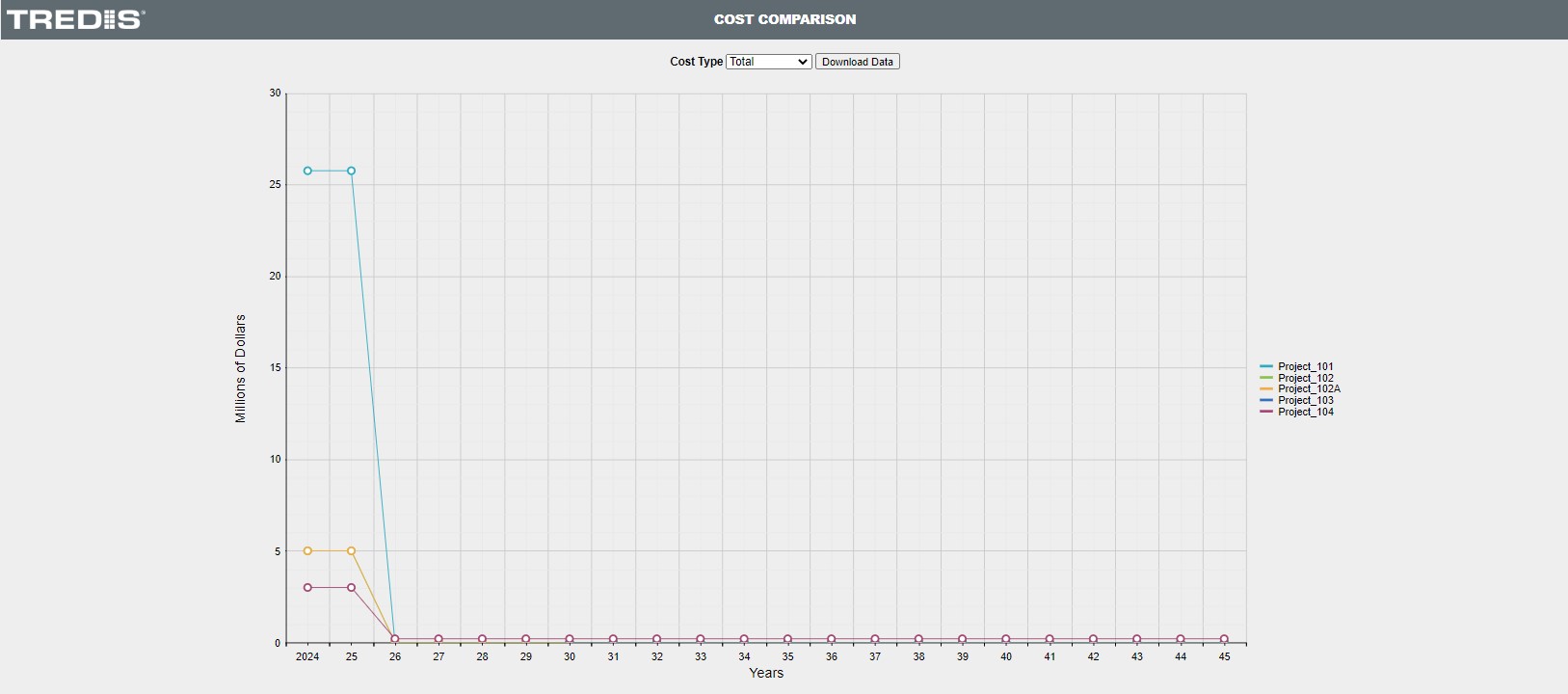
The Cost Comparison tab shows the total costs, construction costs, or operational costs over time for the selected projects. Use the dropdown menu to select which cost type is of interest and the Download Data button for the raw data.
Timing
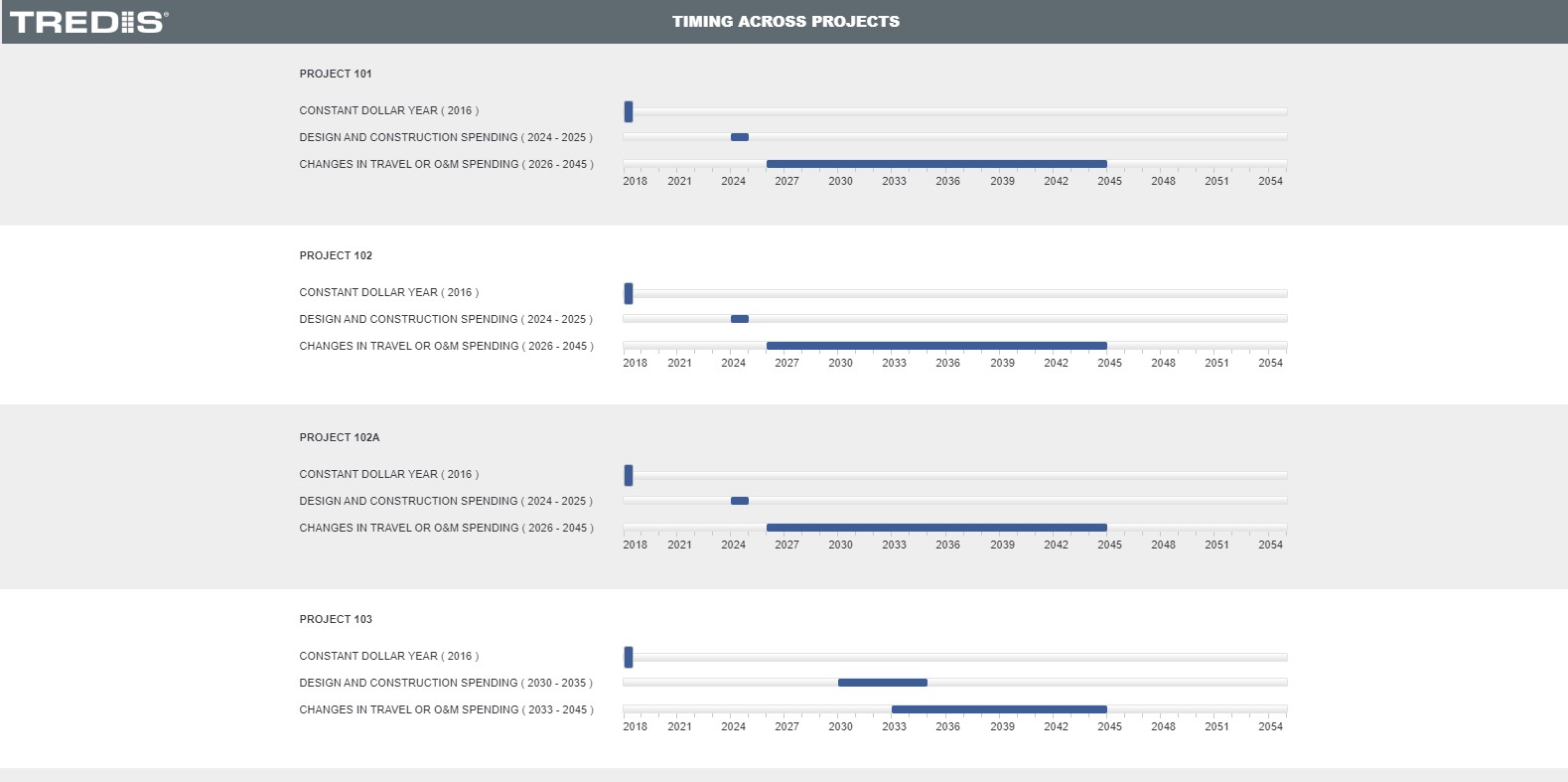
The Timing tab shows the construction and operations periods of each selected project, along with the constant dollar year used to enter data.
Study Regions
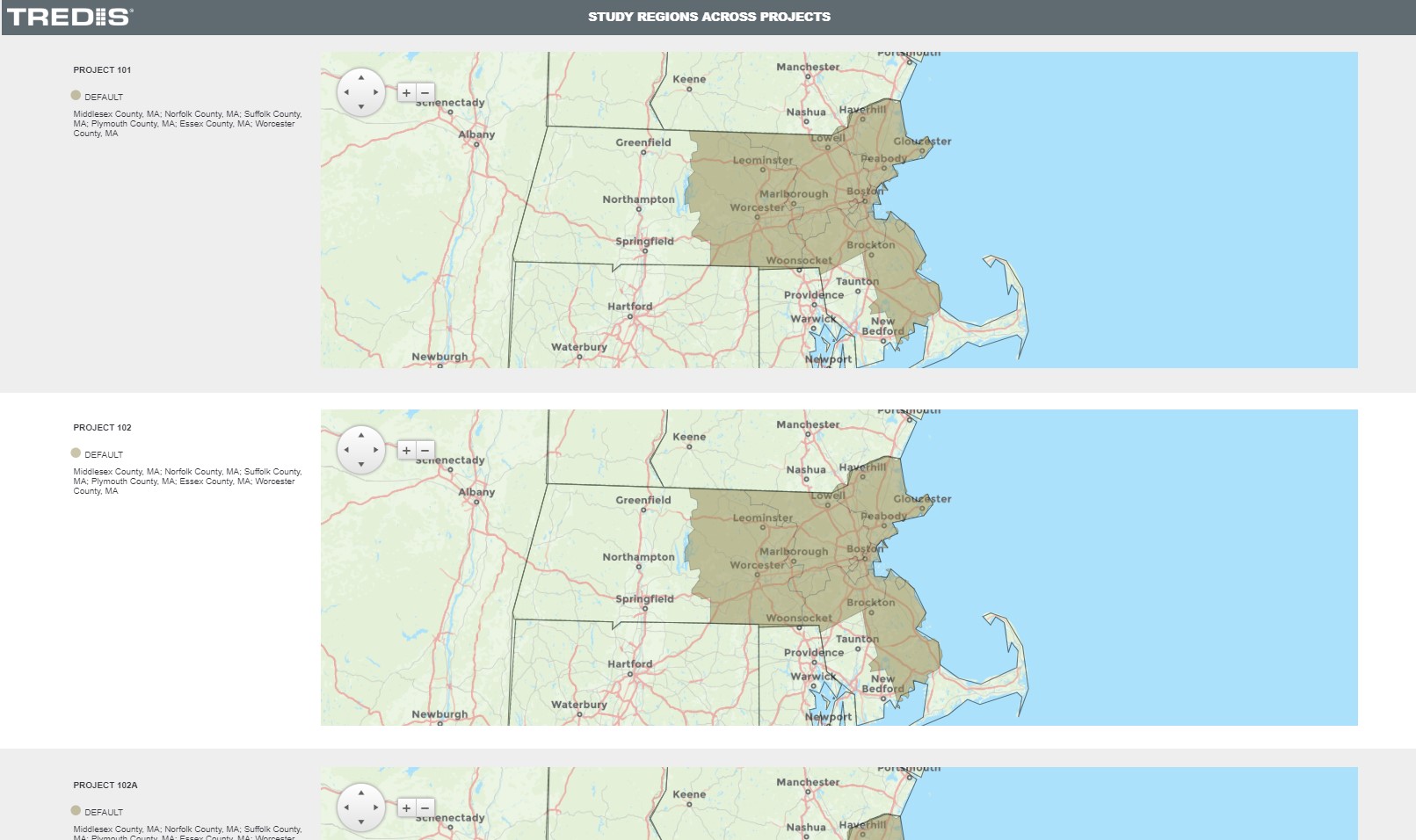
The Study Region tab presents a list and a map of the study regions for each selected project.