Project Management
The Project page allows you to view the details of a Project in TREDIS or manage existing Projects.
When you enter TREDIS, you'll land on this page, and the last Project you worked on will be the Current Project.
Navigating to a Project
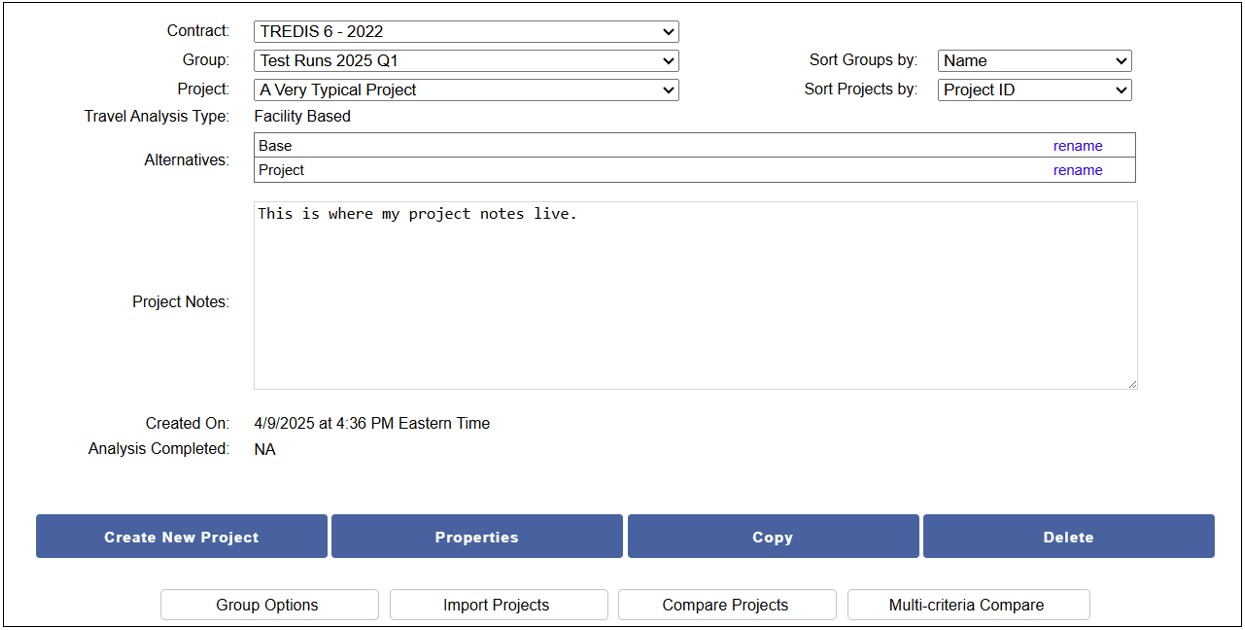
The top three fields of the Project page show the relevant Contract, Group, and Project name for the current Project selected, but can also be used to navigate to any project you have permissions to view or edit.
-
Contract. The highest level of Project organization is by Subscription Contract. Contracts are used to associate projects with the data year and geographies of the economic data available.
-
Group. Projects are next organized by Groups. To find an existing project, first select the desired Group from the dropdown menu. You can change the sorting order using the Sort Groups by control on the right.
-
Project. Once you have selected the appropriate Group, you can then find a Project in the pull-down menu. You can change the sorting order using the Sort Projects by control on the right. Below the Project Name field, information and controls for the Current Project are available.
Details of the Current Project
After the 3 dropdowns used to navigate to specific projects, there are fields showing tha attributes of the current project selected.
-
Travel Analysis Type. Either "Facility Based" or "O-D Based". The Travel Analysis Type is defined when creating the project and cannot be changed after, so it is only an informational field here.
-
Alternatives. TREDIS automatically provides a Base alternative and a Project alternative when you create a project. You may change the name by clicking the rename link. Enter the desired name and then click the update link or cancel to keep the current name.
-
Project Notes. Descriptive information about the current project here. To add or edit text in this field, click on the Properties button.
-
Created On. Date and time the project was created by the system.
-
Analysis Complete. If the results from an Analysis are already run, then this field will show the date the analysis was last run successfully. If the analysis was never run or the last run was not successful, this field will show "NA", indicating the results are not available without running the analysis. This status is helpful when submitting a project for a grant application, so you know when the analysis was run and if it was last run prior to the submittal due date.
Creating a New Project
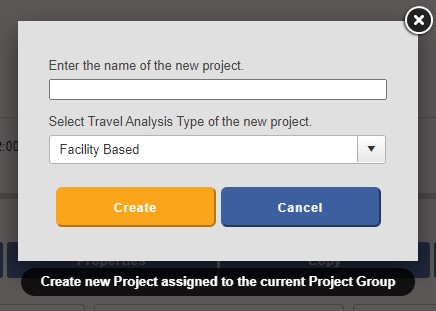
The Create New Project button opens a popup window that lets you enter the name of your new project and select the Travel Analysis Type ("Facility Based" or "O-D Based"). The newly created Project will be assigned to the Current Group.
Facility Based or O-D Based
Facility Based projects will have Travel data that is entered for each region, summing up all facilities’ travel in that Region, and using fractions to represent the share internal, incoming, outgoing, or going through the Region. This may be appropriate if you do not have information on intra-regional flows or are only modeling a single region. O-D Based projects use the concept of origin and destinations to specify the flow of travel between regions including a standard External region. This travel type eliminates the fraction of trips that are internal, incoming, outgoing, or through.
Choosing Base vs. Project
When choosing which of your alternatives should be entered as the Base alternative and which should be entered as the Project alternative, there are a few considerations.
Best practice is typically that Base is the alternative you assume to be worse performing. So in a case where an infrastructure investment is being considered, the alternative where no investment is made would be Base and the alternative where an investment is made would be Project (on the assumption the investment is likely to improve conditions). If you are considering an alternative where a possible facility failure comes to pass, that should be the Base alternative, since the performance and economy is likely to be worse than if nothing happens (which should be represented by the Project alternative).
There are some further considerations:
-
Negative economic impact outcomes might be affected differently by drags than by productivity improvements, because increased transportation costs result in negative economic impacts. These impacts are not symmetrical in magnitude to the economic impacts estimated if transportation costs decreased by the same amount. This reflects the fact that business react differently to increased costs and may seek alternative measures to manage higher transportation costs with decreasing output and employment. More cost-efficient systems on the other hand are more free to expand in optimal manners. Because of this imbalance, alternatives with higher costs should only be used as the Project case when these increased costs are the objective of the policy or investment strategy being analyzed and above the level of baseline forecasts. For all studies examining how transportation actions could support a stronger economy, the project case is expected to show cost savings.
-
Induced travel is not currently supported for the Base alternative, only the Project alternative.
You may want to enter the Project alternative when worse than the base alternative when any of the following are true:
-
Baseline forecasts ignore a cost that should be taken into account
-
Increased costs are the objective of the policy or investment strategy being analyzed and above the level of baseline forecasts
The Properties Button
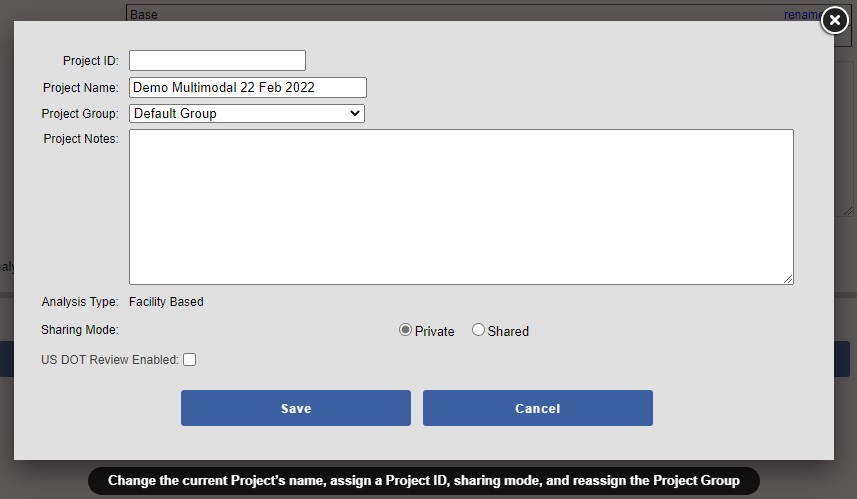
To change the properties of the current Project selected, use the Properties button. This popup window lets you add an optional Project ID, change the name of your Project, reassign its Group, or to add Project Notes. Use the Sharing Mode radio buttons to toggle "Private", where only the project owner may see the project or "Shared", where anyone with a user login within your account may see the project (though only in a read-only capacity). Shared projects may be copied.
If you want to share this project with a US DOT Grant Reviewer as part of a grant application, check the US DOT Review Enabled checkbox. This will allow a grant reviewer to see a read only copy of your project. They may also make a copy which will allow the review to make adjustments to the mode factors and travel inputs as part of their review. Any copies made by the reviewer will be visible to you as a shared project in the same contract and project group as the original submitted project. The grant reviewer's name will appear with the new copied project.
Note: To remove permission for a grant reviewer to see your project, uncheck the box and press the Save button.
Managing Project Records
Use the Copy button to make a copy of the current Project. In the window that opens, enter the name for the copy.
Use the Delete button to delete the current Project. You will be given an opportunity to confirm the deletion. Only the project owner may delete a project.
Warning: Once a project is deleted, it cannot be recovered.
Multi-Project Function Buttons
For more advanced users, TREDIS provides you with the ability to manage the Projects in your Groups and to perform a bulk import of projects or a bulk export of results. Each of the buttons opens a new window or interface.
Group Options Organize, rename, delete, create backups and export results for multiple projects.
Import Projects Upload multiple projects at once using a spreadsheet. The TREDIS Project Import Template spreadsheet is available by clicking on the on the menu icon at the top right of the screen and select the Sample Import Spreadsheet or click on the Import Projects button and select the Import Project Template Spreadsheet link.
Compare Projects In a separate tool, compare the results from multiple Project records in the current Contract and current Group.
Multi-criteria Compare Prioritize projects with a specialized tool that can weight factors such as VMT savings, economic impacts, and equity considerations.