Group Options
In TREDIS, each analysis of a Base-Project alternative pair is called a Project, and projects are organized into Groups. The Group Options window allows you to manage the organization of their projects. TREDIS also allows performing multi-project tasks, such as exporting results, changing sharing levels, and deleting multiple projects.
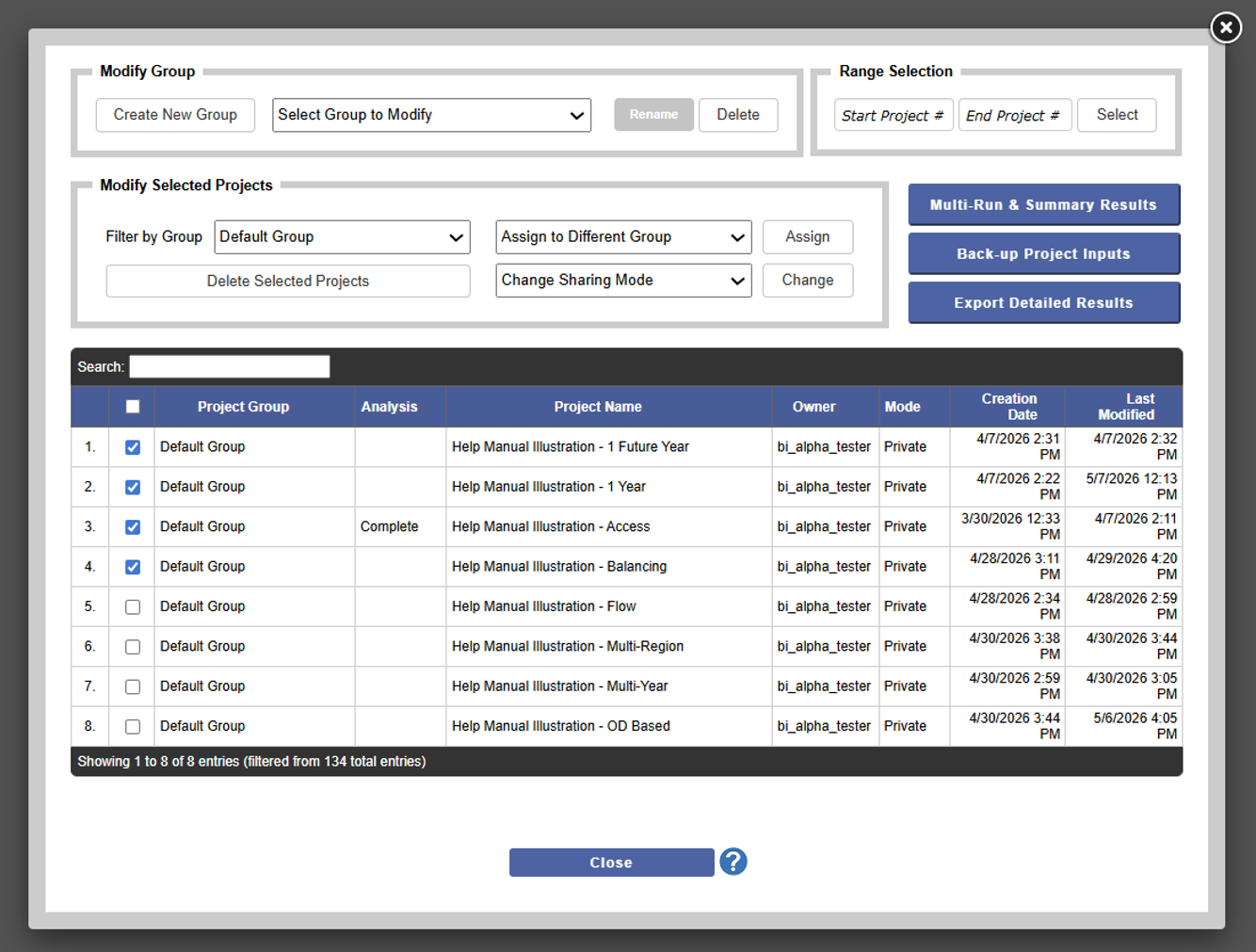
Modify Group
The controls in the Modify Group section let you change the Groups (not the projects themselves) for the current contract you are working in.
Use the dropdown menu to select a Group to modify.
- Create New Group. Create a new Group. This will open a popup window that lets you enter the name of your new Group.
- Rename. Rename the current Group selected. Then press the Rename button, which will open a window to enter the new name.
- Delete. To delete a group, select the Group to delete from the dropdown menu, then press the Delete button. A window will open to confirm that you want to delete permanently.
Selecting Projects
In the Group Options window, before you can perform any bulk operations on projects listed in the Modify Selected Group section or any of the buttons to the right, you must select any number of projects in the current Group at the same time to perform those actions on.
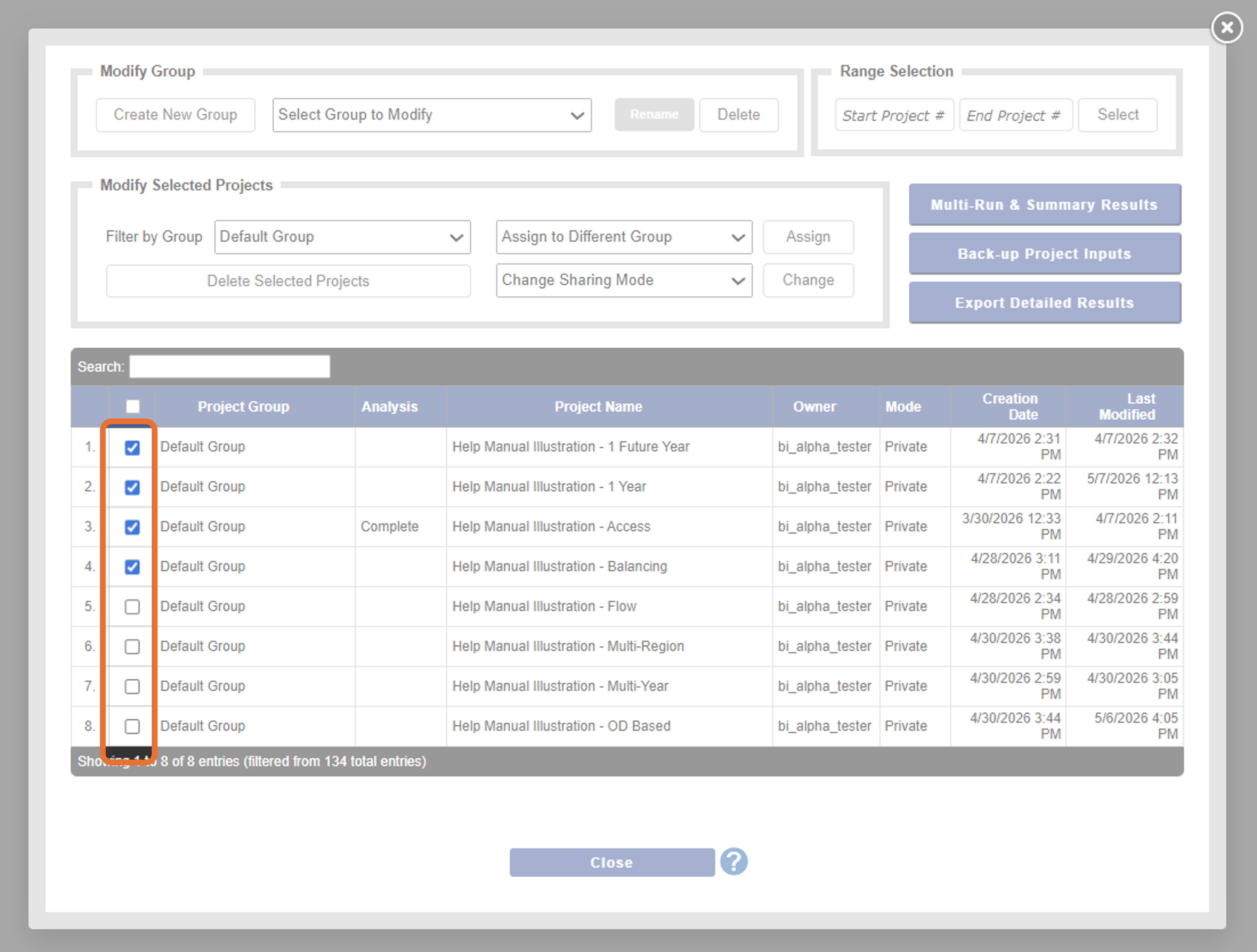
Before you select projects, make sure the current Group you want to operate on is active. This can be done by choosing a Group from the Modify Selected Projects section, with the Filter by Group control. Doing this will change the Projects listed in the pane at the bottom. Alternatively, you can select all projects associated with the current contract by selecting All Groups.
The available projects to select or deselect are listed at the bottom of the window along with their details. You can select them using any combination of these methods.
- Manual selection. You can always click the checkbox to the left of each project name to select or deselect it.
- Toggle all. Check the box at the top of the pane to select (or deselect) all of the projects listed.
- Range Selection. In the Range Selection section at the top right of the window, enter the first and last row numbers for the projects you wish to select, and the system will automatically select these projects.
Modify Selected Projects
You can perform operations on all of them using the options in the Modify Selected Projects section of this window.
Use the Filter by Group dropdown to select the desired Group. You also have the option to select all groups by selecting All Groups from this menu. You will notice that the list of projects below will change based on the filter settings.
After selecting projects to operate on using the options described in the section above, you can perform the following actions on all of them:
- Assign to Different Group. Use the dropdown menu Assign to a Different Group to select a Group to reassign the select projects, and click the Assign button. If you have filtered your projects by a specific group, they will disappear from the current view to reflect the change.
- Change Sharing Mode. Use the dropdown menu Change Sharing Mode to change projects from Private to Shared (or Shared to Private), and click the Change button.
- Delete Selected Projects. Delete any projects currently selected. You will be asked to confirm before this is executed. This process may take some time, and a progress message will appear to the left of a button labeled Cancel Deletion.
Bulk Operation Buttons
Other important operations that result in an exported Excel sheet can be accessed via the buttons to the right of the Modify Selected Projects section. Each of these buttons launches its own window to launch the operation.
Click on the names of the buttons below for detailed instructions on the operation.
- Multi-Run & Summary Results. Run the selected projects and export a summary Excel spreadsheet to be sent to e-mail.
- Back-up Project Inputs. Create a back-up Excel spreadsheet of selected projects for re-import later.
- Export Detailed Reports. Produce an Excel spreadsheet combining multiple Results reports for the selected projects.