Project Management - Import Projects
The project import functionality in TREDIS is a powerful feature that can be used to recreate project backups and, for advanced users, to create projects in bulk. In either case, TREDIS projects are read in from an Excel file in the Import Spreadsheet format.
The Import Spreadsheet
The Import Spreadsheet in TREDIS is an Excel file with a defined structure. You can see a sample by clicking on the on the menu icon at the top right of the TREDIS screen and selecting Sample Import Spreadsheet.
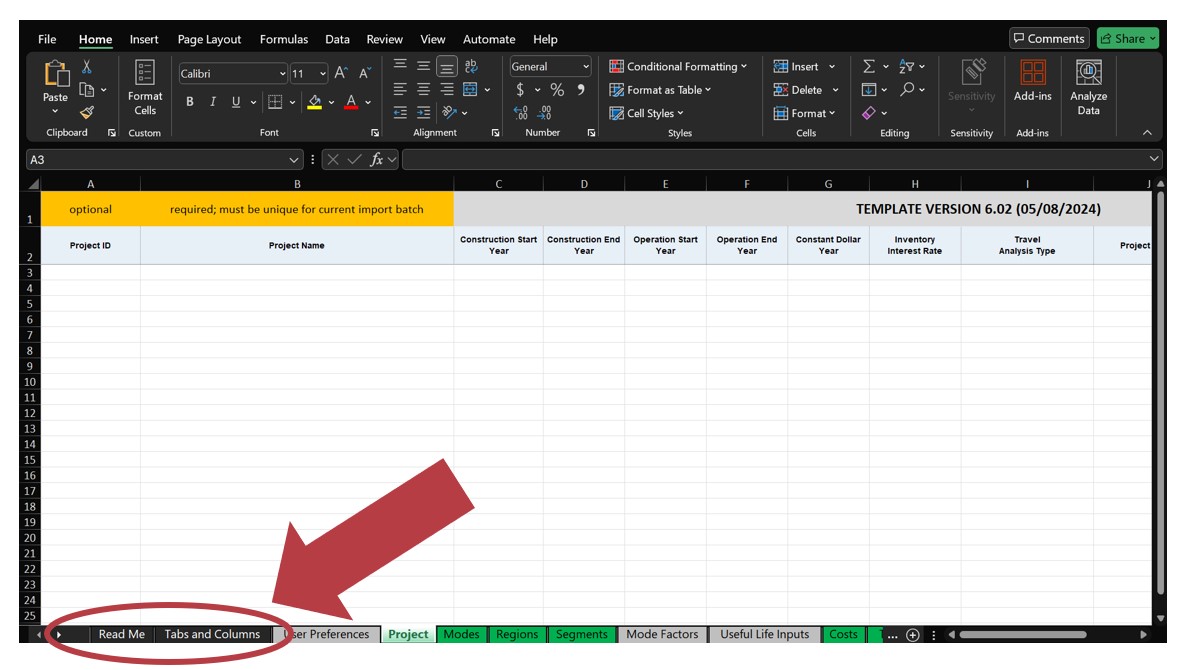
The spreadsheet has its own documentation on the Read Me and Tabs and Columns tabs. (Black tabs are documention, green tabs are necessary, and gray tabs are optional.)
Troubleshooting Import
If you've never imported a project before, we recommend that you back up a project first. Once the back-up is downloaded, open the Excel file and read the documentation (on the black tabs at the far left). You should also take a minute to browse the green and gray data tabs to see how data is organized and presented. This will help you avoid errors in import and understand the purpose of individual tabs. Common problem areas are discussed below.
Preferences
On the User Preferences tab, the Preference Settings values should match your current user Preferences. To change your current User Preferences, click on the on the Navigation Menu (at the top right of the TREDIS screen) and select Preferences.
Dollar Year
On the Project tab, the Constant Dollar Year should be the same for all projects and match the year of the Contract you are trying to import to.
Unique Project Names in a Group
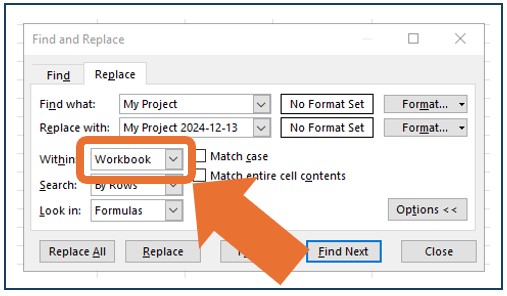
The names of any projects being imported cannot be the same as any projects in the group being imported into. You can always add a suffix with the date if you are unsure if the projects you're importing will have a unique name. (For example, "My Project" could become "My Project 2024-12-13".) If you need to update project names in Excel, you will probably want to use the Find-Replace functionality, with the Within: Workbook option selected, as in the screenshot:
Missing Data on Green Tabs
Make sure data is entered for all green tabs in the Import Spreadsheet (or for the OD version of the tab, if appropriate). An exception is the Costs tab. TREDIS cannot provide default Costs data, but the tab can be left blank if you do not intend to analyze cost data. (This might limit your analysis. For example, you won't be able able to calculate a benefit-cost ratio without costs input.)
Import Steps
This section steps through the screens and operations to import projects in the TREDIS application.
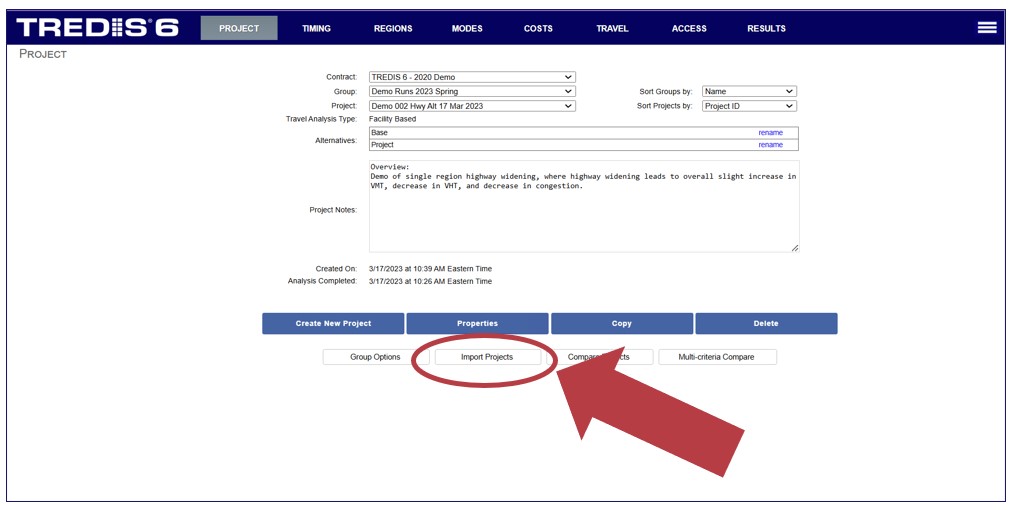
From the Project page, start the process by clicking the Import Projects button at the bottom of the screen.
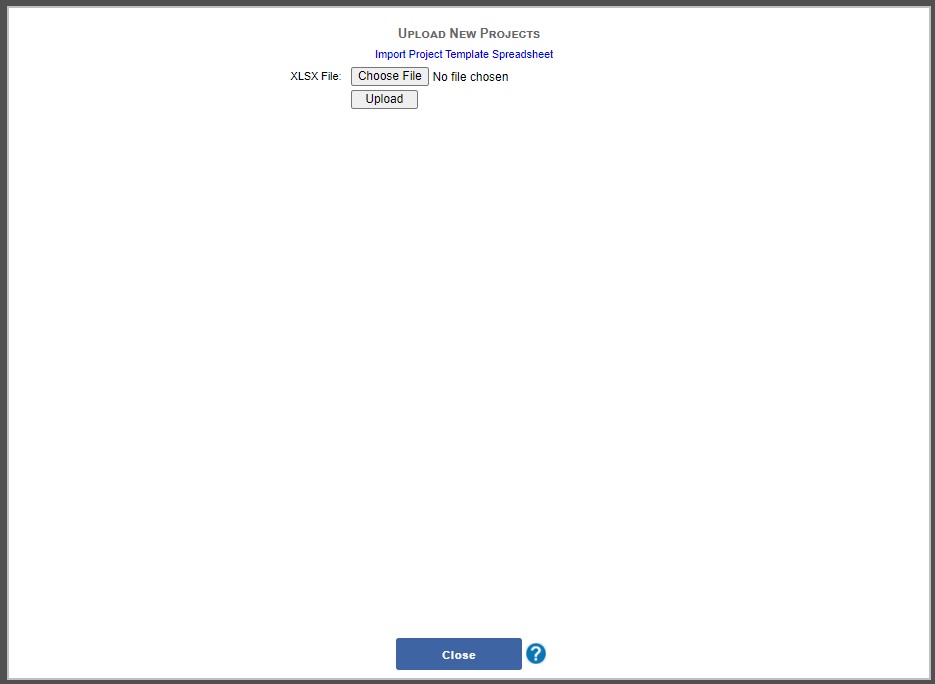
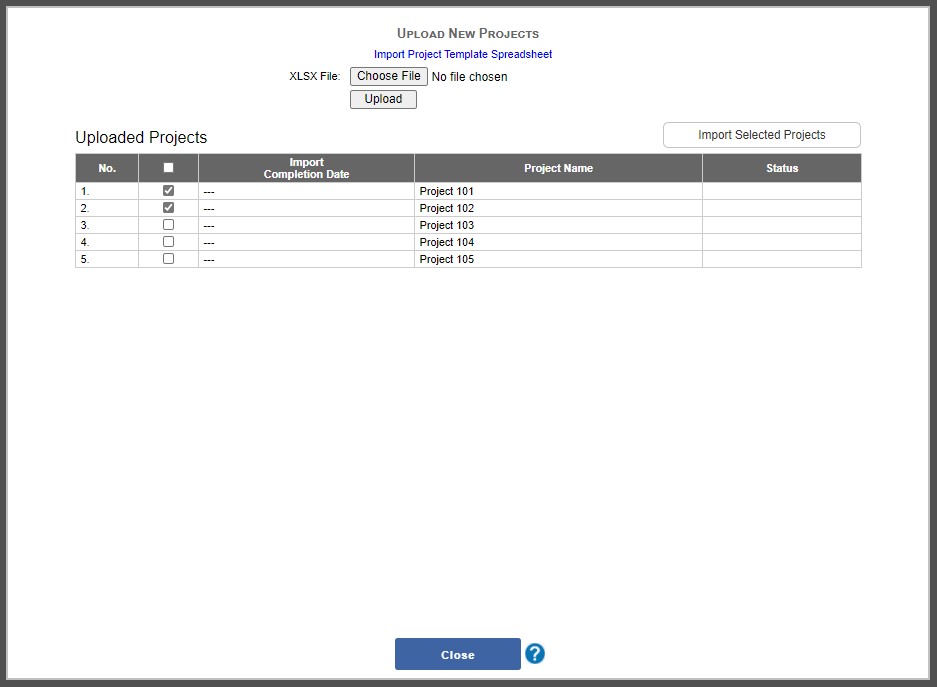
In the Upload New Projects window, click the Choose File button, then use the browser to find the import file in your system
In the Upload New Projects window, you will be presented with a list of all projects that are contained in the spreadsheet. On this screen, check off projects you want to import. Then click the Import Selected Projects button.
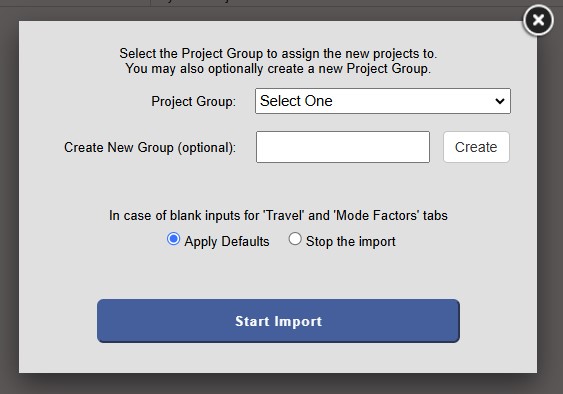
The Import Options window will appear. First, select which Project Group to import the projects. You can create a new group on the fly by entering a new group name and clicking the Create button.
Another radio button toggle allows you to decide if empty values will be filled by a default or stop the import process.
Once the project group is set and any desired settings adjusted, press the Start Import button to initiate the process.
As the projects are imported, their status you will see the status on the project list screen.