Diagnostics
The Diagnostics window gives you a quick way to check performance data entered on the Travel page to confirm it represents the expected changes to support economic development.
For example, it may be assumed that the Project alternative (often the "Build" alternative) represents improved facilities that will allow users to go faster. The travel characteristics input into the Travel screen may not reflect that, though, and the Diagnostics page allows you to catch that earlier in your analysis workflow, before running the full project.
Changes
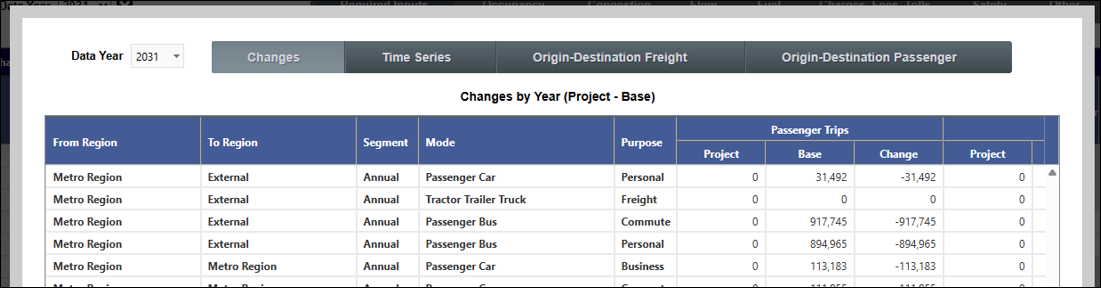
The Changes tab is available for both Facility Based and O-D Based projects. It represents changes by year for trips, miles per trip, and speed.
On this page, all changes are calculated as Project value minus Base value, unlike the reports under the Results page. This is because it's more intuitive to highlight increases as positives here, especially improvements in speed.
Time Series
The Time Series tab is only available for O-D Based projects.
In the top half of the Time Series tab, the graph labeled "Change in Passenger and Ton Hours Over Time" shows total changes in passenger hours and ton hours, summed by Purpose.
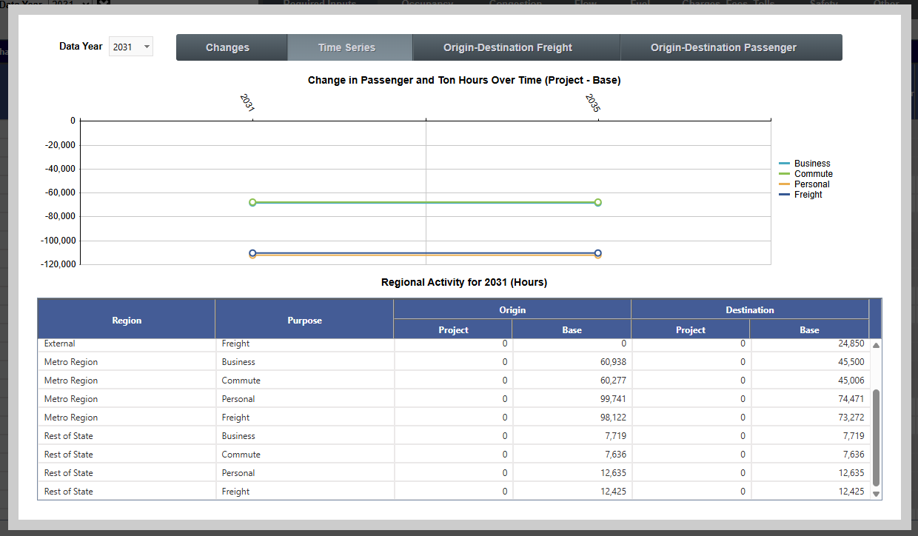
Toggle whether purposes are shown by clicking on the purpose label at right in the legend.
In the bottom table, "Regional Activity," you can see the total change by Origin and again by Destination. (Notice that both the Origin and Destination sections constitute the total universe of trips, so they cannot be added together, as this will double count all trips.) The year can be changed using the Data Year drop-down at top left.
Origin-Destination Freight and Passenger
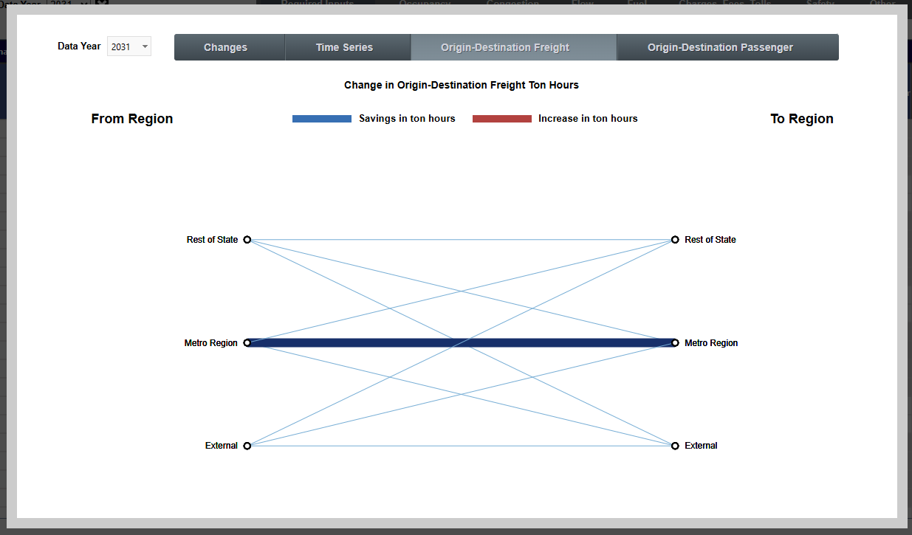
The Origin-Destination Freight and Origin-Destination Passenger tabs show representations of ton-hours or passenger hours saved by direction of flow, with the origin region to the left and the destination right. Blue lines represent net savings (hours in project alternative are less than in base) and red line represent net increase (hours in project alternative are higher than in base). Hovering with your cursor over a line shows a pop-up detailing the project, base, and change values for the line, as in the figure. The Data Year is selected in the drop-down at top left.