Benefit-Cost Reports
Graphics
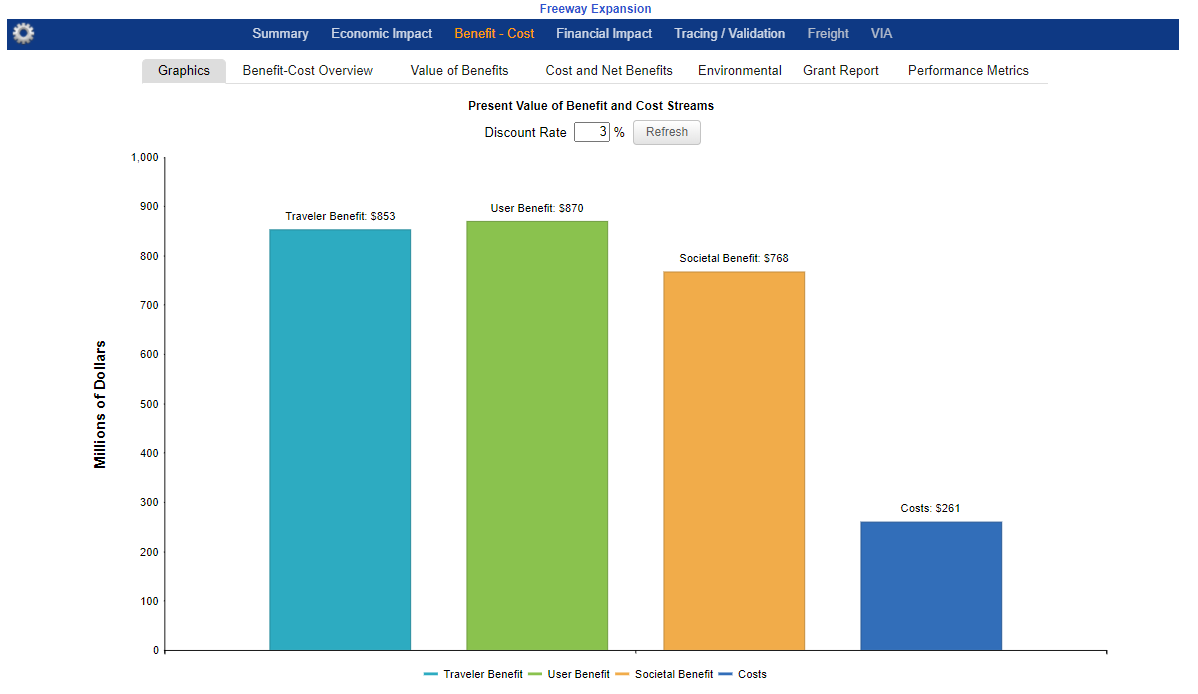
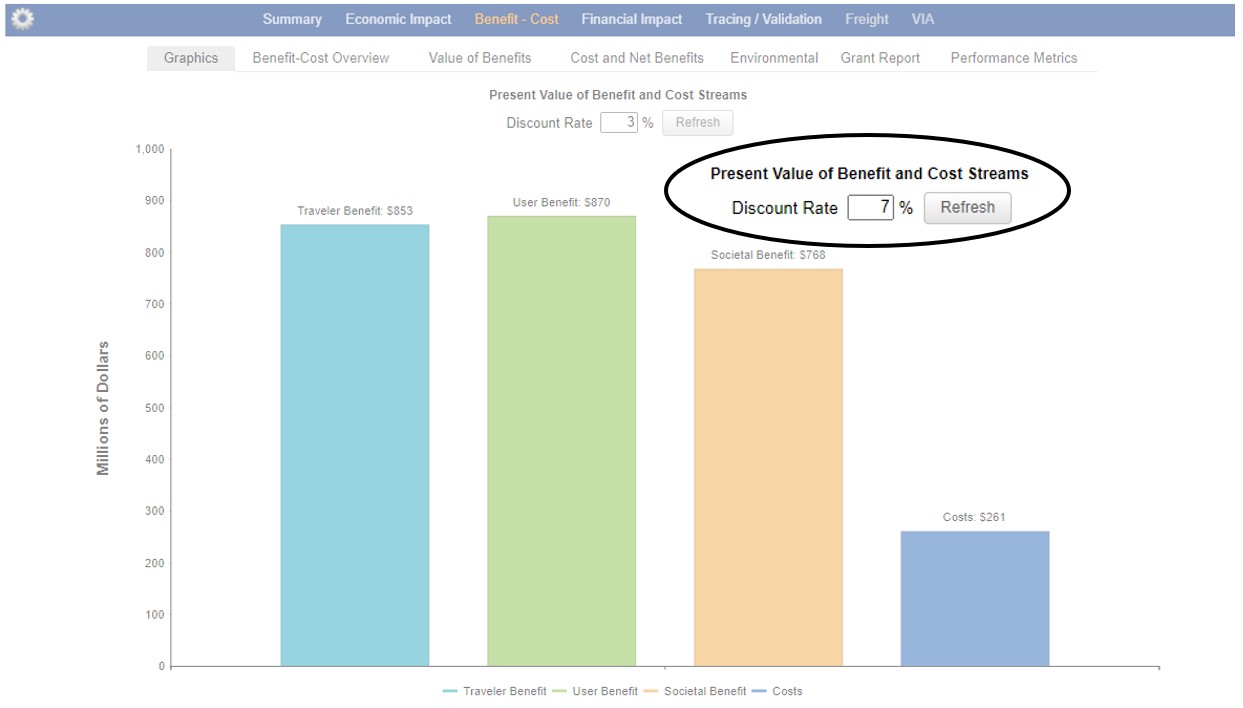
The Benefit-Cost tab starts on the Graphics sub-tab, which shows a chart for the different components of the Benefit-Cost analysis.
The Graphics and Benefit-Cost tabs present three different groupings of benefits with the Societal benefit encompassing total benefits. The following sections explain the benefit groupings and their components in detail.
Metrics on the Graphics Tab
The Graphics tab shows 3 distinct ways to calculate total benefit and another bar representing costs. Traveler Benefit represents benefits to travelers and the businesses that employee them. It is the most narrowly focused of the 3 types of benefit tabulations. User Benefit metric includes all the same benefits as Traveler Benefit but also includes Logistics Costs, which represent the cost of managing freight. The Societal Benefit tabulation includes all of the Traveler and User Benefits, but also incorporates externalities. See this table for a complete list of categories considered:
| Benefit Category | Traveler Benefit | User Benefit | Societal Benefit |
|---|---|---|---|
| Business Time & Reliability Cost | X | X | X |
| Value of Personal Time & Reliability | X | X | X |
| Consumer Surplus | X | X | X |
| Vehicle Operating Costs | X | X | X |
| Safety Costs | X | X | X |
| Logistics Costs | X | X | |
| Business Productivity | X | ||
| Social | X |
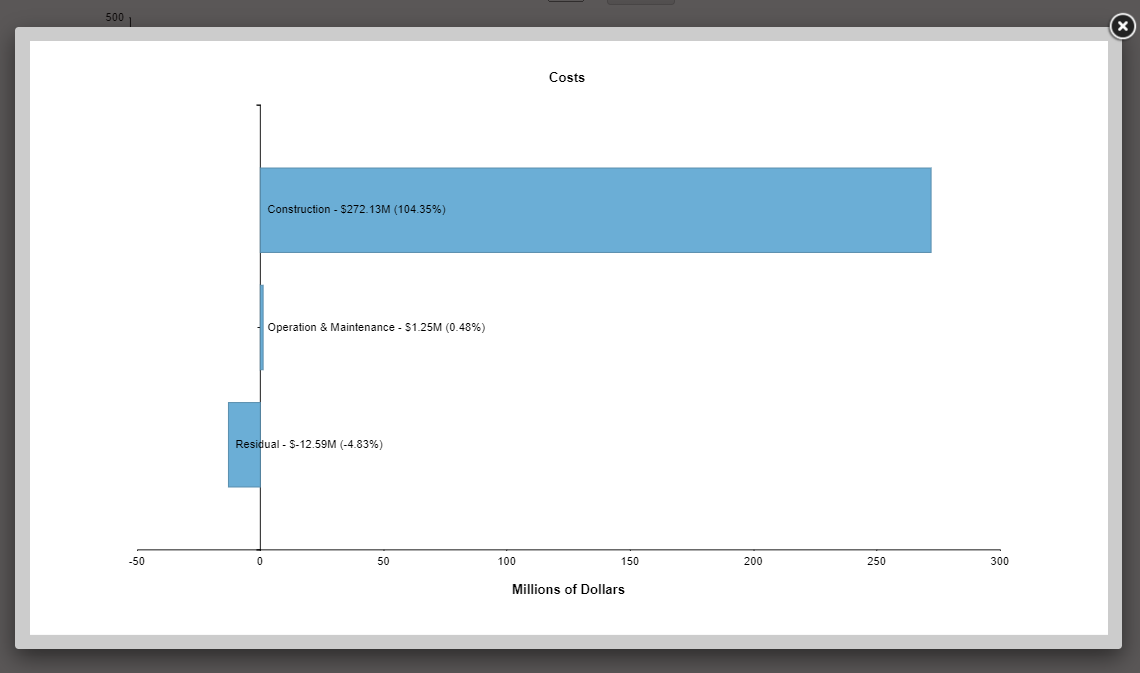
The Costs category in TREDIS represent direct, monetized costs of designing, building, and maintaining infrastructure, summarized in the following categories:
- Construction
- Operations & Maintenance
- Residual
Using the Graphics Tab
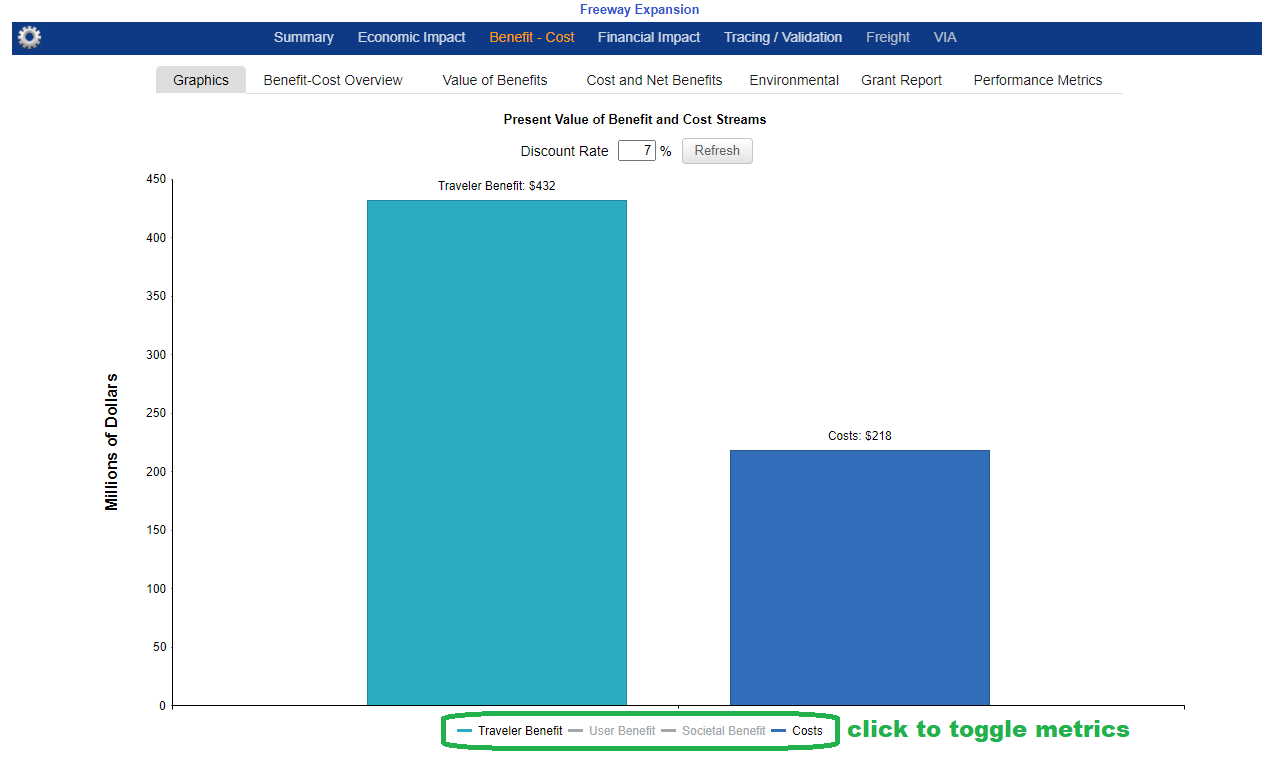
Because Traveler Benefit, User Benefit, and Societal Benefit cover similar categories, you may choose to toggle off one or two benefit bars of the tabulations if they aren’t relevant to your analysis.
Toggle on and off metrics by clicking on them in the legend. For example, User Benefit and Societal Benefit may be toggled off to see only Traveler Benefit and Costs.
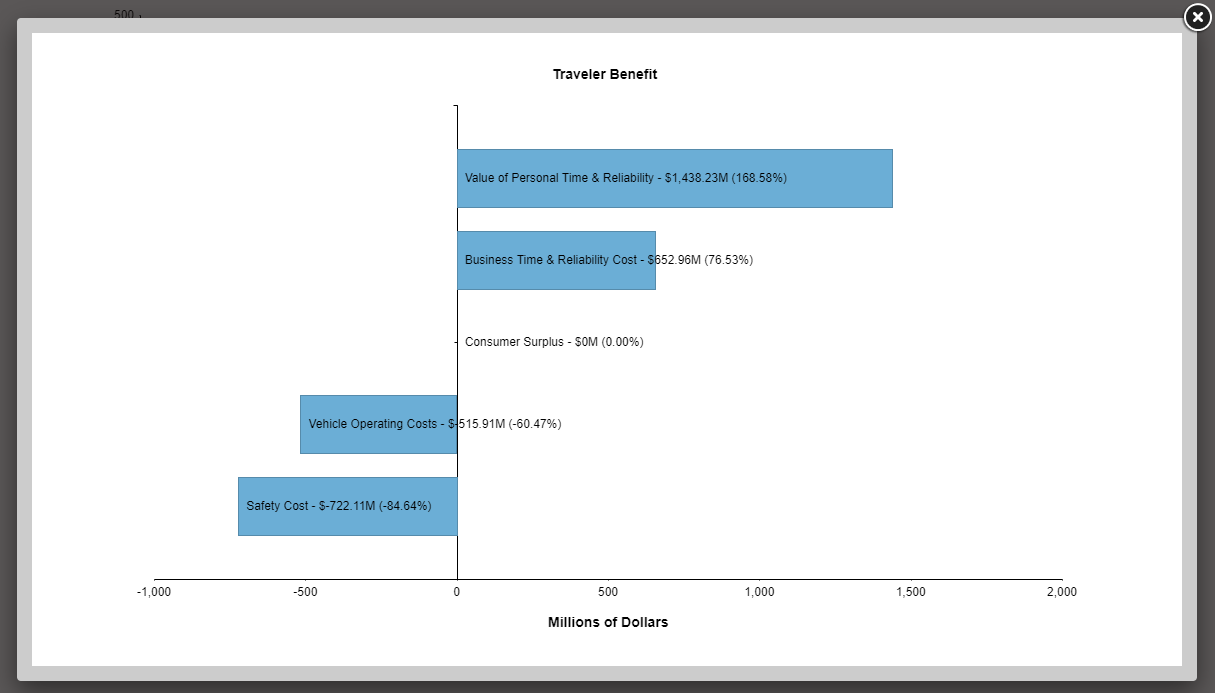
Clicking on a Benefit bar on the chart reveals brings up a new graphic detailing that disaggregates the benefit by the included categories. Clicking on the Traveler Benefit bar above, for example, shows the breakdown between categories.
Finally, click on the Costs bar to reveal a disaggregation by Costs categories.
You may also update the Discount Rate and click Refresh to change the discount rate for all measures.
Benefit-Cost Overview
The Benefit-Cost Overview report shows a tabulation of Benefit-Cost Analysis results for the discount rates selected in Results settings. As with all similar tables, clicking the blue arrow on the left expands the selected category.
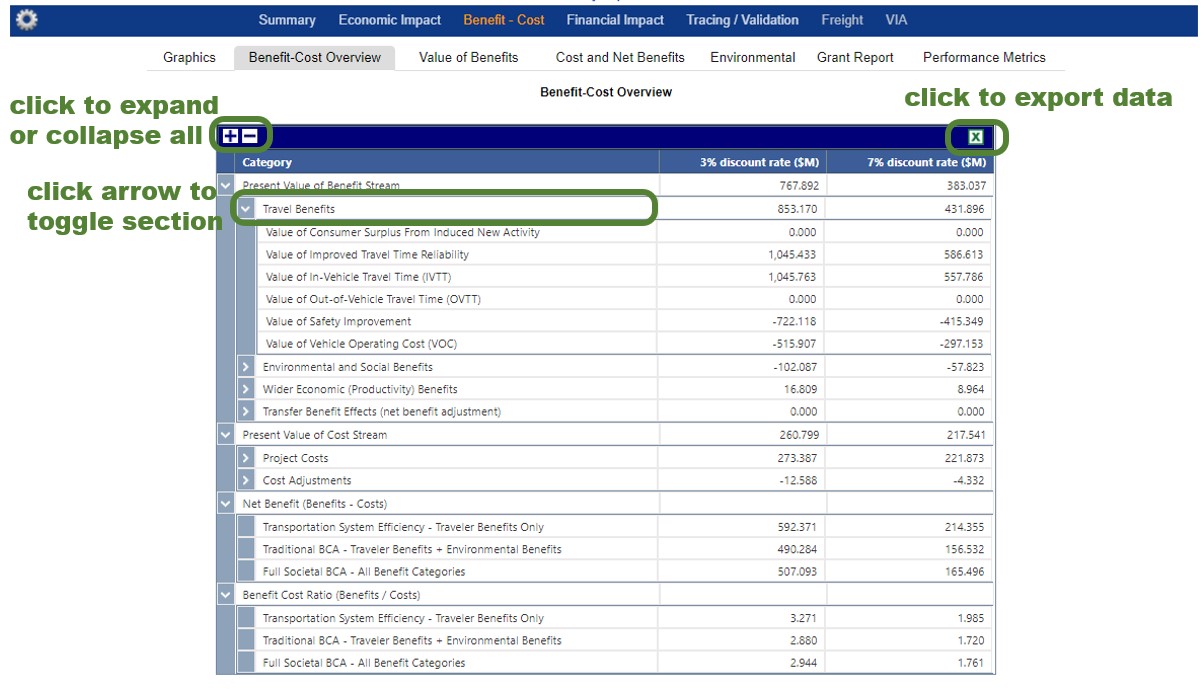
All values are in present values (discounted) terms, in millions of dollars.
The section for Present Value of Benefits Stream drills down into the various categories of net benefits that a project or policy change can bring about.
- Benefit Stream – Travel Benefits are associated with travelers and traveling, including categories for time savings and safety as well as vehicle operating costs.
- Benefit Stream – Environmental and Social Benefits are associated with environmental effects, greenhouse gas production, and other social benefits as defined by user.
- Benefit Stream – Wider Economic Benefits are benefits associated strictly with business productivity, labor market participation, and logistics and supply chain savings.
- Benefit Stream – Transfer Benefit Effects specifically deal with adjustments due to fees, for example fees, tolls, or other user charges.
The section on Present Value of Costs Stream details accounting for Project Costs and Cost Adjustments.
- Costs Stream – Project Costs represent actual design, capital spending, and operational and ongoing maintenance costs associated with the project.
- Costs Stream – Cost Adjustments are often residual values of capital, following its use for the project.
The Net Benefit section presents 3 categories of summary statistics for the BCA.
- Transportation System Efficiency: Traveler Benefits Only is Traveler Benefit minus Present Value of Costs Stream.
- Traditional BCA: Traveler Benefit + Economic Benefits is Traveler Benefit plus Wider Economic Benefit minus Present Value of Costs Stream.
- Full Societal BCA: All Benefits Categories is Traveler Benefit plus Wider Economic Benefit plus Environmental and Social Benefit minus Present Value of Costs Stream.
Benefit Cost Ratio shows 3 ways to calculate Benefit-Cost Ratios.
Value of Benefits
This report shows the benefit values by type by year for two different discount rate, or undiscounted. These categories are the same as presented in the Graphics tab, but grouped A through E, depending on the type and whether the benefit is monetized or non-monetized.
The left tab provides aggregations by year while the right tab provides aggregations by mode-purpose. You may dynamically set the discount rate with the drop down.
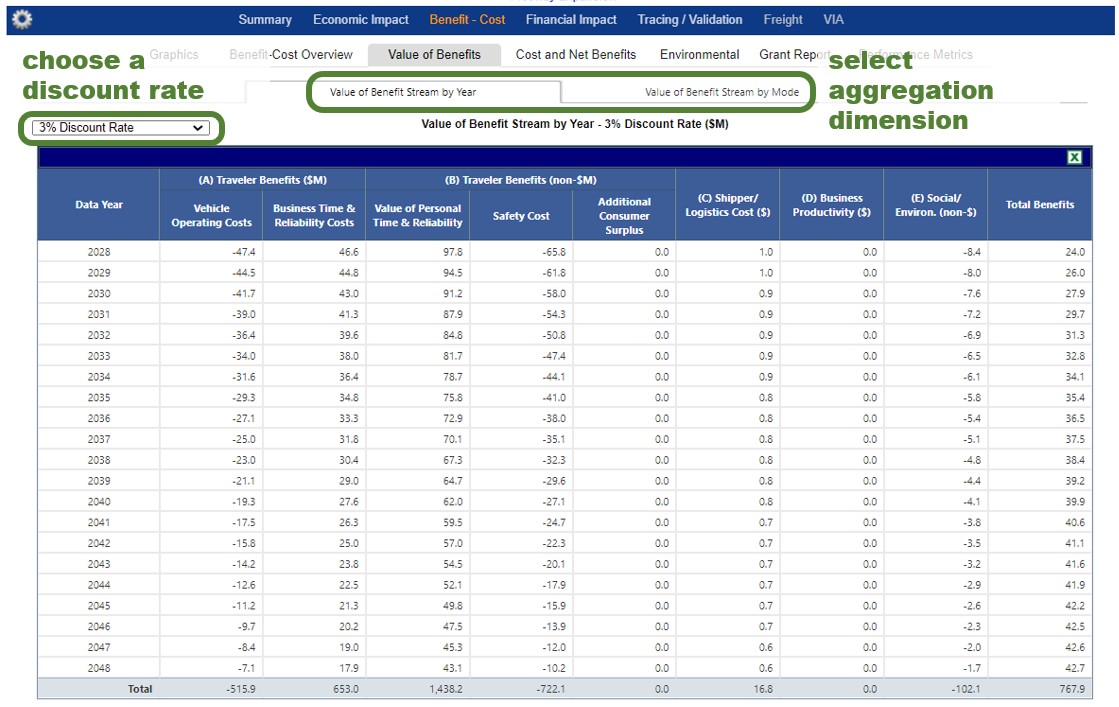
Monetized benefits include expenditures or savings on vehicle operating costs, and represent actual money transfers. Whereas externalities (safety and the environment) are monetized to capture the full range of benefits, even though these benefits only represent an approximate measure of value.
For example, vehicle operating costs include user expenditures on fuel, maintenance (tires, brakes, etc.), and vehicle depreciation per mile. On the other hand, reduced commute times benefit users, and are monetized to capture the total benefit to society of the project (relative to the cost), despite no monetary transfer to the commuter.
As elsewhere, keep in mind that benefits may be negative, in which case they’re referred to more accurately as “disbenefits.”
All figures are in millions of dollars. The categories are monetized unless noted otherwise.
Cost and Net Benefits
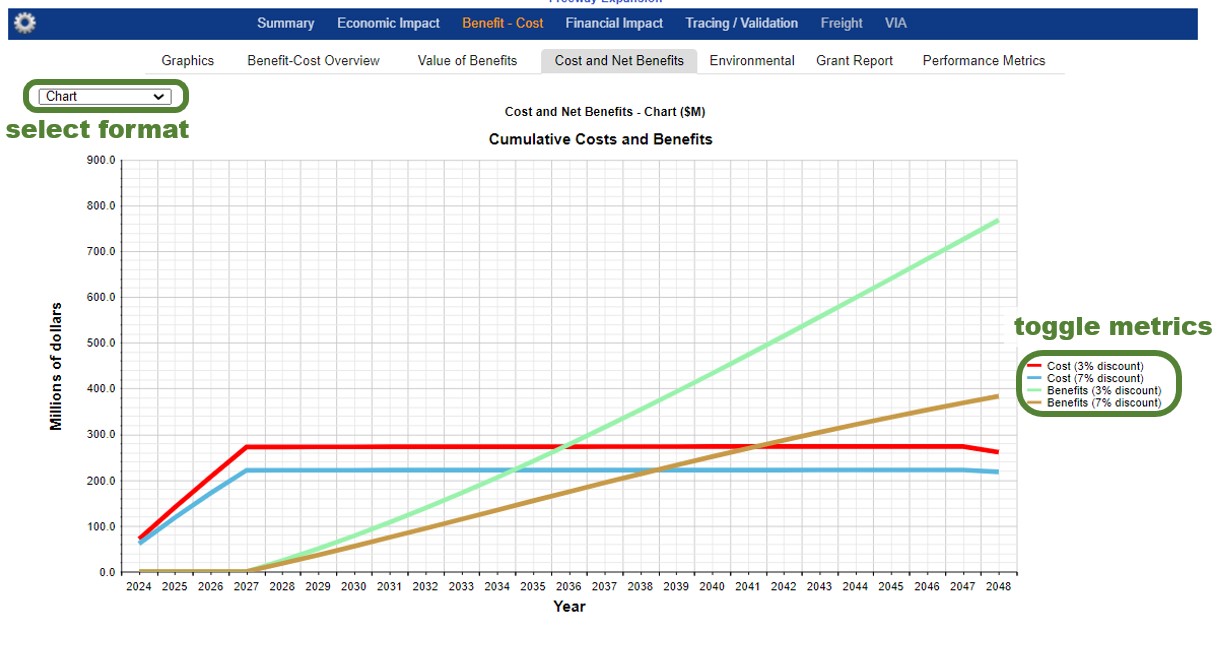
The graphs and tables of the Cost and Net Benefits tab show the gradual accumulation of benefits and costs, making it simple to find the year a project breaks even. The default format is a chart, but other formats can be selected via the dropdown menu at top left.
Chart View
The line chart shows the cumulative costs and benefits. Two discount rates are shown by default. Clicking on the metric descriptions in the legend toggles them on or off.
By toggling off the metrics showing Benefits at 7% and Costs at 7%, we can see just the rates for 3%. Then, hovering over the line for benefits, we can see individual year values.
This is often useful for quickly identifying the year that cumulative benefits overtake cumulative costs.
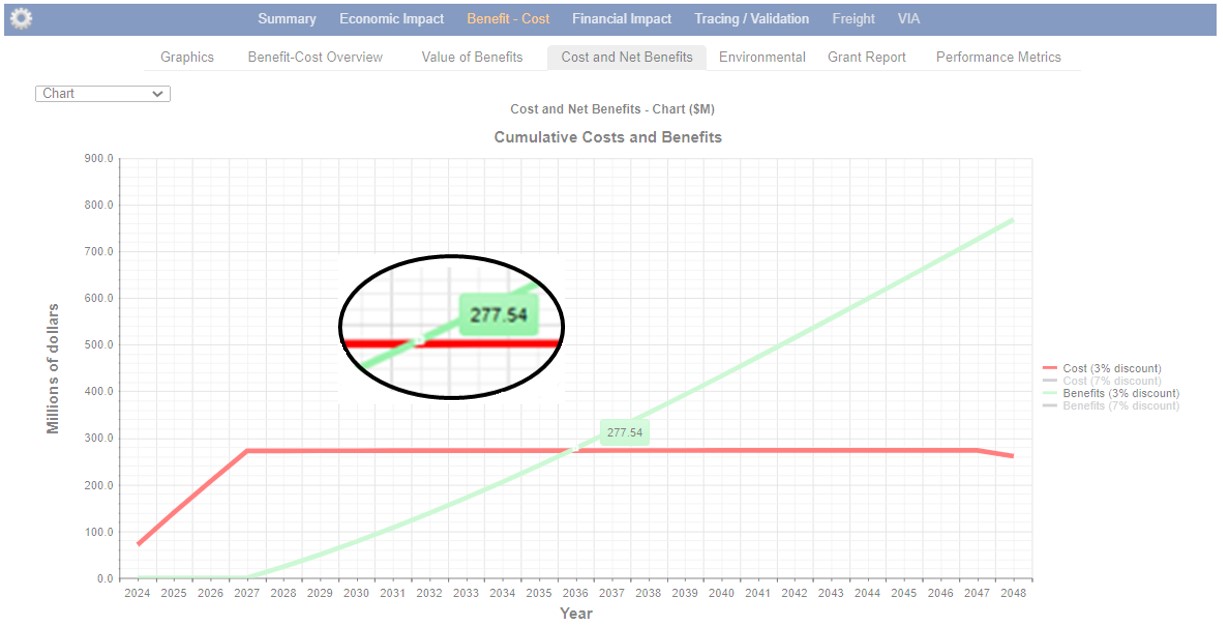
Table Views
Selecting a Discount Rate (or Undiscounted) in the drop-down menu in the upper left corner presents the data as a table.
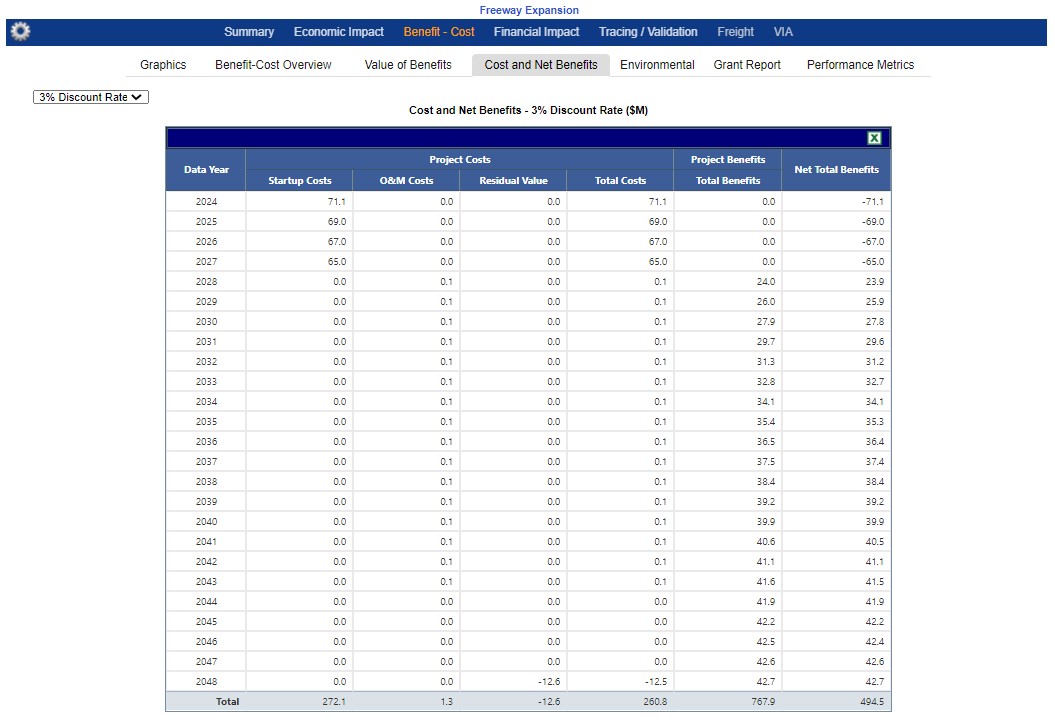
The Project Costs columns show major cost categories.
- Startup Costs include the construction, capital, and design costs.
- O&M Costs are the recurring costs of yearly operations and maintenance.
- Residual Value costs are negative because they return value beyond the analysis horizon, similar to a benefit (e.g. a bridge doesn’t disappear at the end of the analysis period and continues to function). This explains why, for example, there is a small drop in cumulative costs in the graph above at the very end of the project, when residual values are accounted for.
- Total Costs sums the previous columns.
The Project Benefits column summarizes the benefits disaggregated in other reports. The Net Total Benefits simply shows Total Benefits minus Total Costs.
Environmental
Environmental impacts include impacts from volatile organic compounds (VOC), NOx, SO2, particulate matter (PM 2.5), and CO2. TREDIS estimates costs of emissions of PM 2.5, or particulate matter 2.5 microns or smaller.
Reports under the Environmental tab show emissions by year in metric tons, the value of emissions by year, and the value of emissions by mode-purpose.
For the value reports, the drop-down menu in the upper left allows you to choose a discount rate.
As with other benefits and savings in TREDIS, the environmental benefit may be negative to represent a disbenefit due to more pollutants.
Grant Report
The Grant Report collates information from several sources to facilitate TREDIS reporting for grant applications.
- The Benefit-Cost Summary section is drawn from the benefit-cost calculations in the Graphics tab.
- The Project's Impact on Travel Characteristics section is from the Tracing/Validation tab, on the Change in Travel Characteristics report. Note these are summed across regions.
- The Benefit-Cost Results by Year sections are given for each of the two discount rates chosen in Results Settings (often 7% and 3%).
- The Environmental Factors sections are from the equivalent Environmental tab reports.
- The BCA Assumptions section presents assumptions for the value of time, vehicle operating cost, and environmental costs. You can check this against the Adjust Mode Factors window, accessible via the Modes page. The values are repeated for Base and Project simply to show they do not change between them; in TREDIS these factors are all the same between the base and project alternatives.
- The Useful Life section reiterates defaults (or inputs) from the Costs page.
Benefits per Unit
The Benefits per Unit report demonstrates the benefits per unit of construction for projects where users have entered data in the Quantities and Unit Costs window of the Costs page.
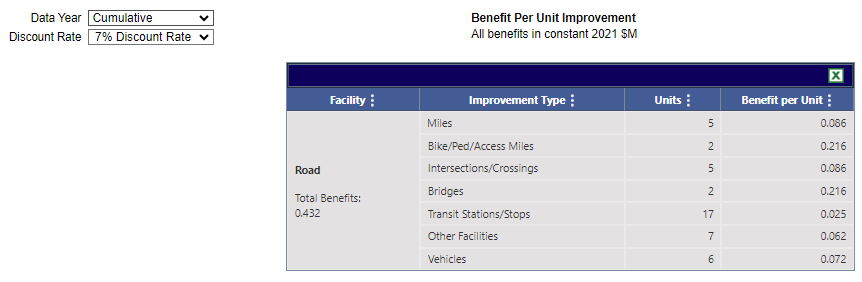
- The Units column shows the change in the units built between alternatives (Project alternative minus Base alternative).
- The Benefit per Unit column shows the total benefits of the project divided by the number of units of changes.
Note: The numbers in this column should not be added together, since the total benefit is used as the dividend in each row. Each row represents how the benefits could be attributed to the improvement as if it were the only improvement.
Benefit per Trip
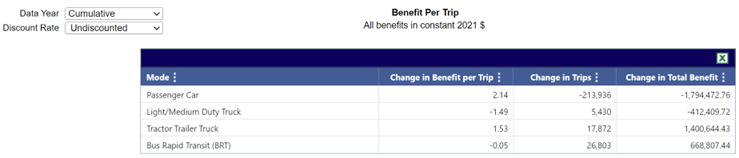
The Benefit per Trip report shows change in benefits per trip. This is calculated for passenger trips for Personal, Commute, and Business purposes, and calculated for vehicle trips for Freight purposes. When represented as a benefit per trip, it is easier to represent the user experience and understand whether it is improving from the Base to Project alternative.
For these calculations, induced trips’ full cost is counted. (Compare with the calculations for Induced Benefit, where only half the benefit is assumed to be enjoyed by consumers, since that calculation is for the user benefit.)
Dropdown menus allow you to change the year calculated (including an option for all years, "Cumulative"), as well as the discount rate.
- Change in Benefit per Trip shows whether the benefits per trip are improving in the Project alternative. For example, if the cost per trip is $3.00 in the Base alternative and $2.00 in the Project alternative for a mode, the Change in Benefit per Trip would be $1.00, because each trip enjoys a $1 in the Project alternative.
- Change in Trips shows the change in trips in the Project alternative. This is calculated by subtracting Project trips from Base trips, so a negative number means there are more trips in the Project alternative. For example, if there are 100,000 trips in the Base alternative and 200,000 in the Project alternative, the Change in Trips would be -100,000 to show that trips increased.
- Change in Total Benefits shows the change in total benefits in the Project alternative compared to the Base alternative.