Financial Impact Reports
Graphics
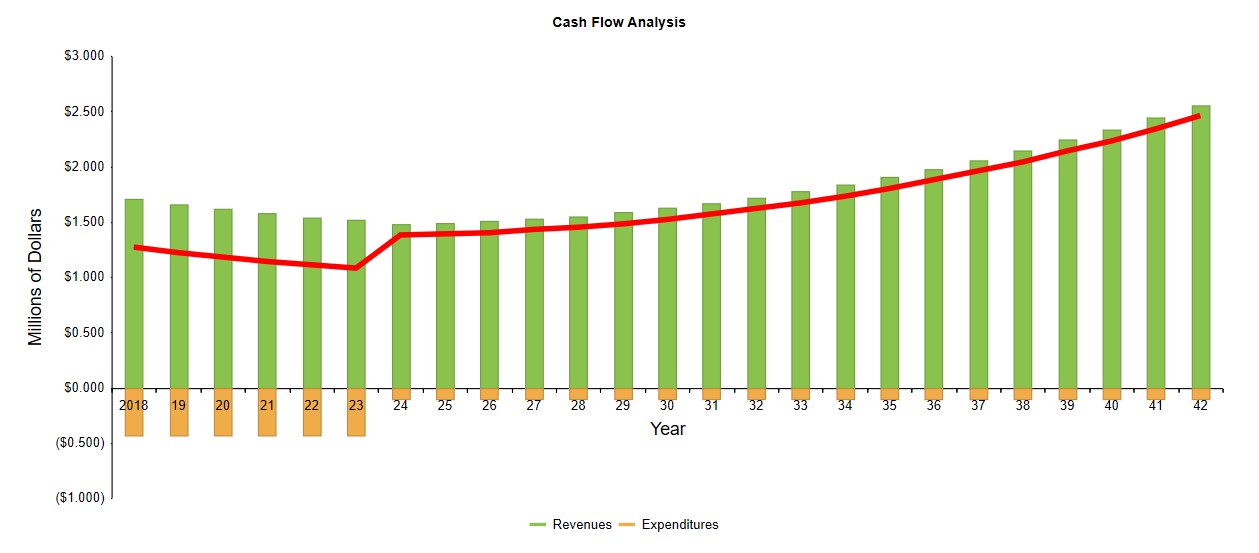
The Financial Impacts reports open with a summary graphic showing revenues and expenditures as a bar chart, with a line showing the net revenue on a year-by-year basis.
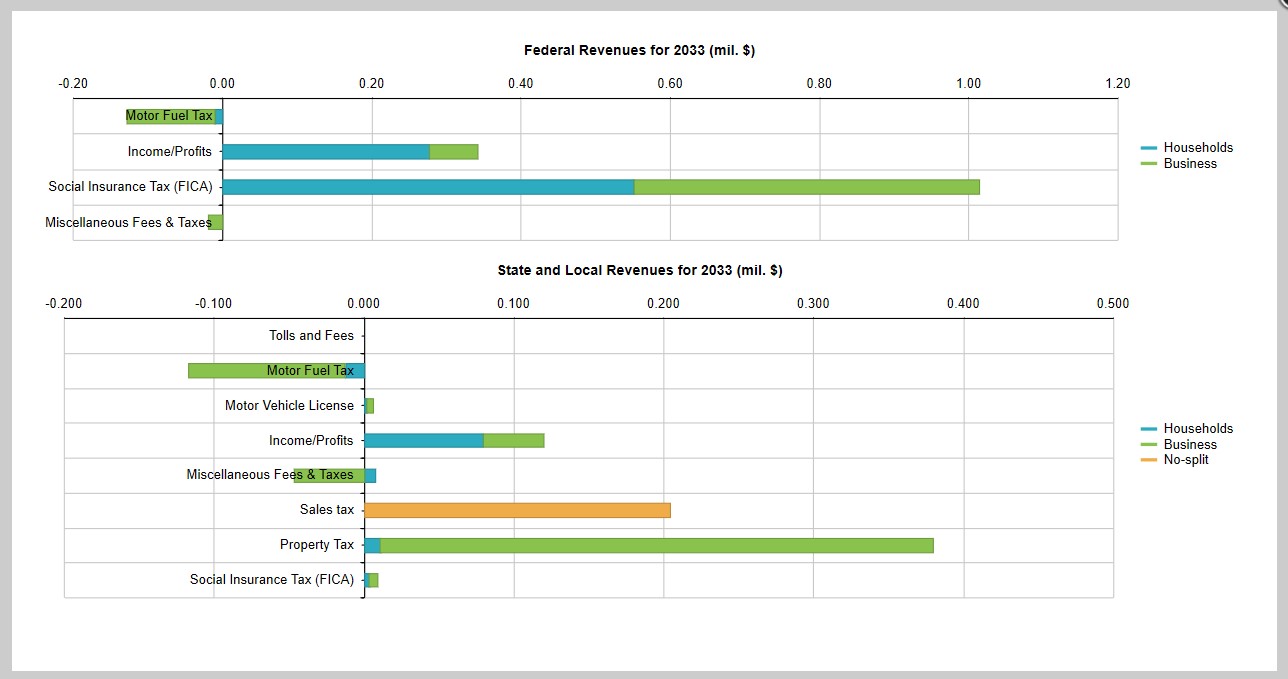
Clicking on a revenue bar shows the detailed breakout of impacts due to federal and state/local taxes, broken out by households and businesses.
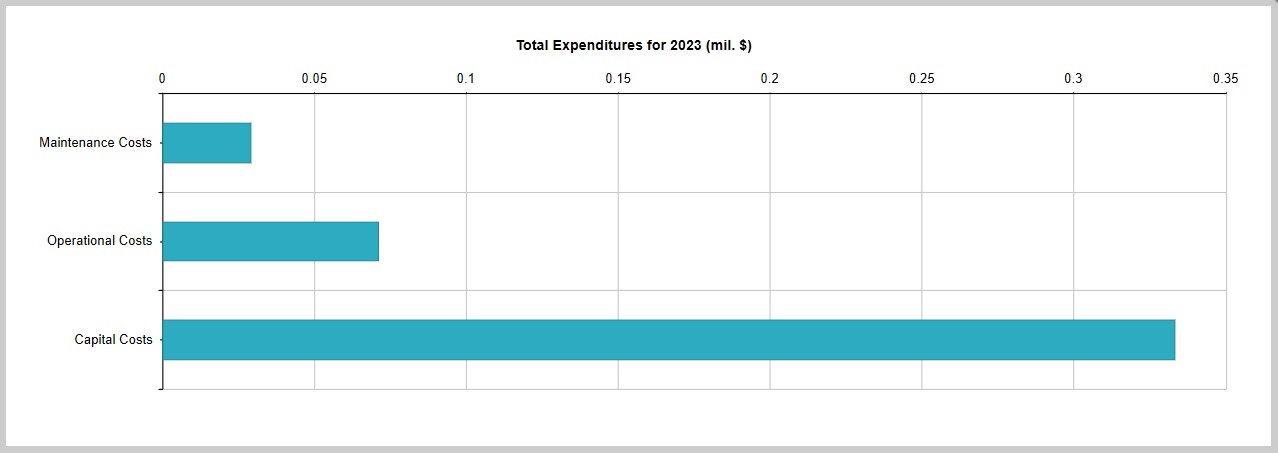
Likewise, clicking on a cost bar shows the detailed breakout of expenditure impacts for the project.
Revenues
Under the Revenues tab, select a Region and Year to see projected revenues. Like other matrix tables, clicking the plus or minus sign in the upper left will expand or collapse all rows, and clicking the Excel symbol in the upper right will export the data shown as a spreadsheet that can be saved.
- Impact Type. Controls whether you view the total impacts or filter the results to view only construction, operational, contingent development, or market access impacts.
- Cash Flow. Selects either with real or nominal dollars for the cash flow.
- Inflation Rate. Allow you to change the inflation rate used in your analysis.
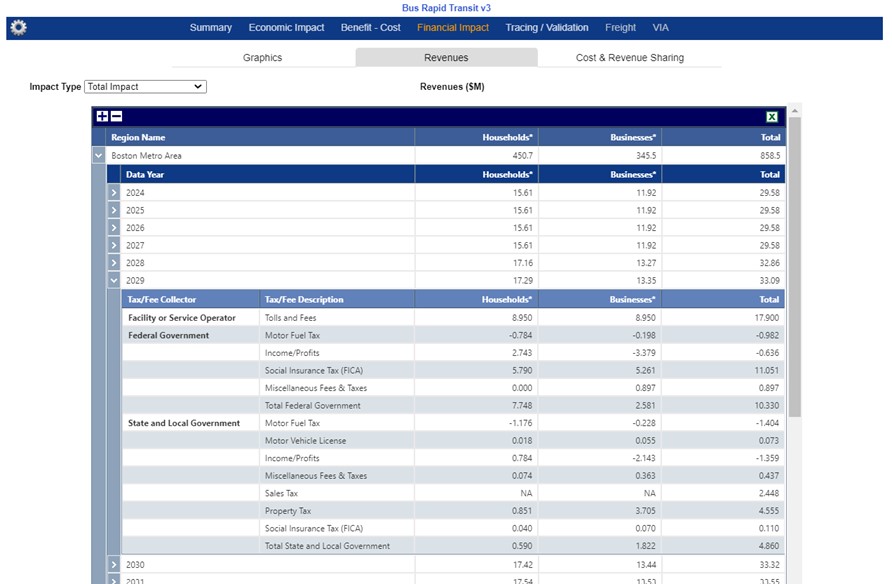
Note that Sales Tax is NA under the Household and Business disaggregate columns because the foundational IMPLAN data underlying TREDIS calculations does not provide the incidence split between the two entities.
Cost and Revenue Sharing
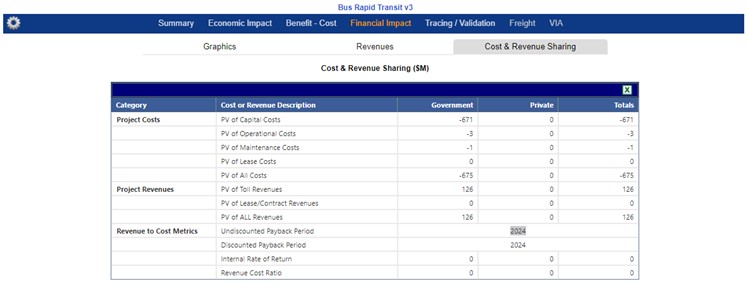
Undiscounted Payback Period and Discounted Payback Period show the year that cumulative revenues top cumulative costs. Discounts here are the first discount rate specified on the Results Settings page.