Economic Impact Reports
TREDIS allows you to filter your results using the dropdown menu controls at the top of many of the economic impact results screens. Note that not all controls appear on each results screen.
-
Impact Type. Filter for the type of impact or “Total Impact” for the sum of all impact types. The following can be selected:
-
Construction impacts stem from amounts spent in the Construction Years on capital improvements and planning, as entered on the Costs page.
-
O and M impacts stem from operations and maintenance spending in the Operations Years, as entered on the Costs page.
-
Operations impacts stem from changes in travel behavior as entered on the Travel page.
-
Contingent Development impacts stem from output or employment changes that are not directly reflected in travel changes but which are contingent on an infrastructure project (or other change) being implemented. Inputs resulting in these would be entered in the Access page under the Contingent Development tab.
-
Market Access impacts stem from improved job matching and business-to-business structural improvements. Inputs resulting in these would be entered in the Access page under the Intercity Access tab.
Economic Activity. This control allows you to adjust the results view to look at the comparison between Project versus Base, the Base results, or the Project results.
Industry Aggregation. The Industry Aggregation menu allows you to adjust the industry details viewed in the results, with increasing levels of detail. Note: The larger the number of sectors, the longer the report. We recommend beginning with the 14- or 53- sector reports, then changing if needed to a more detailed report.
Occupational Aggregation. The Occupational Aggregation menu allows you to adjust the details viewed in the results at the 2-, 3-, or 4-digit occupational code level.
Graphics
The Economic Impact tab opens with a summary graphic showing for the sum of all regional jobs, business output, value added, and wage income by year. Toggle on and off metrics to show by clicking on them in the legend.
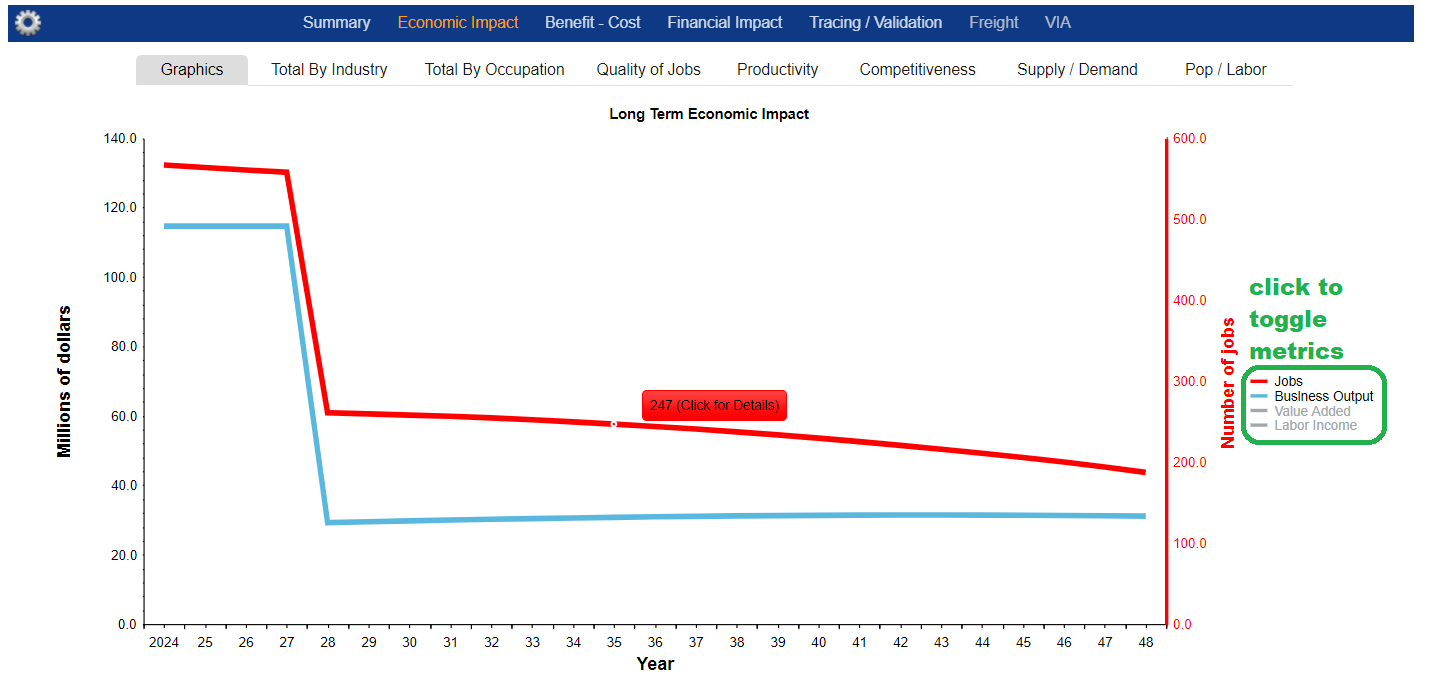
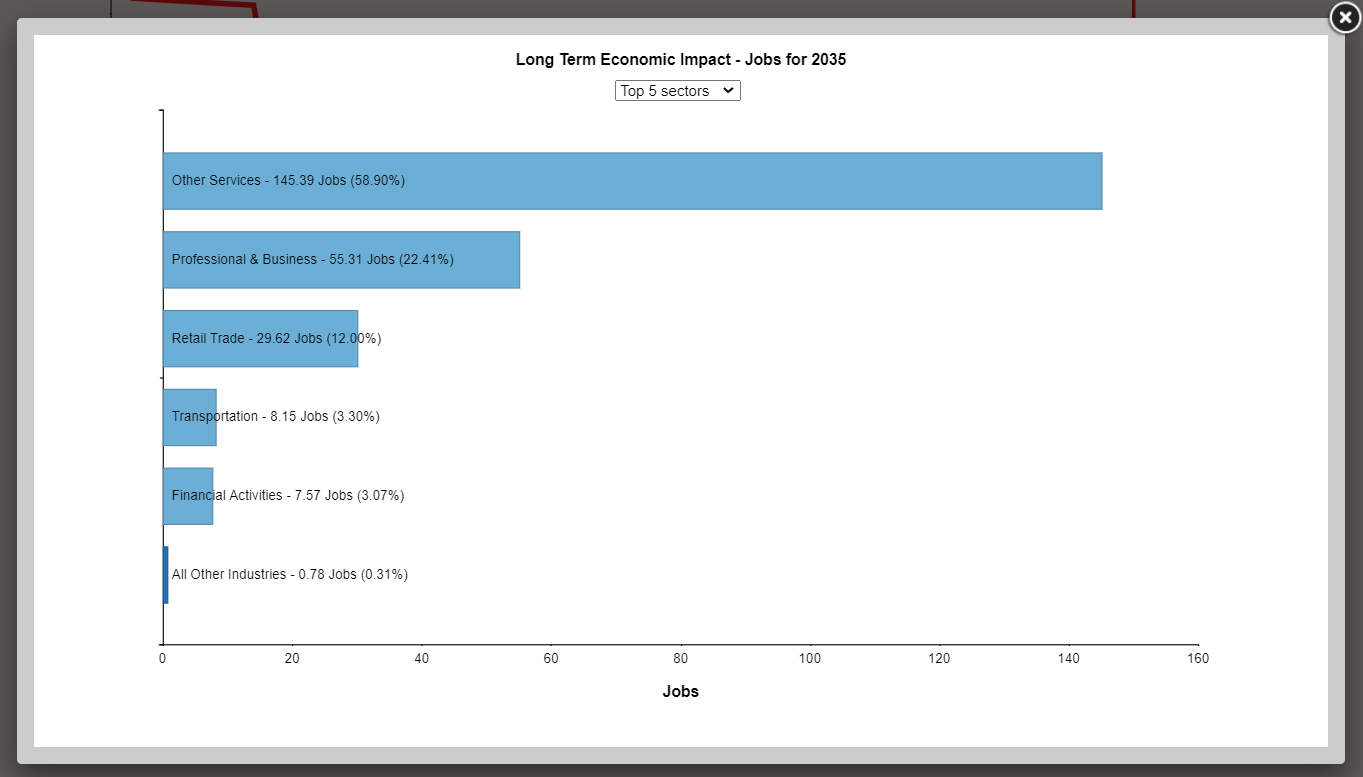
In the screenshot, hovering on the red line where it crosses year 35 will show the value for that year, in this case 127. Clicking on this data point will open a graph showing by-industry breakdown of the metric (in this case, jobs). This view begins with the top five industry sectors, which may be changed using the drop-down menu under the graph title.
Total by Industry
This interactive report presents the economic impacts of the project by year and for all regions in the project. The number of industries is determined by the Results control panel option Industry Aggregation. The NAICS codes associated with them are provided.
Core metrics of Business Output, Value Added, and Labor Income are in millions.
Impact Breakout
This report gives breakdown by the impact type: "Direct", "Indirect", or "Induced" effects, as well as by the source.
Total by Occupation
This matrix provides a profile of the occupational type of jobs that are being generated by the project. This type of information is important for economic developers. Much like industry, you can change the level of aggregation reported with an option on the Results control panel, Occupational Aggregation. Occupation codes are SOC codes.
Core metrics of Business Output, Value Added, and Labor Income are in millions.
Quality of Jobs
The Quality of Jobs report shows characteristics of the jobs created by the project, with details categorizing occupations by wage criteria (High Wage, Medium Wage, Low Wage) and whether jobs in in each category are growing or not.
By clicking on the tabs above the graph, you can toggle between viewing Quality of Jobs as a chart or table.
-
Not Growing means an occupation is projected to grow less than 0.5% annually.
-
Growing, Unstable means an occupation is growing but turnover is relatively high.
-
Growing, Stable means an occupation have relatively less turnover.
The growth benchmark of 0.5% annual growth is set by research into the projected 2018-2028 growth trends. For context, no-growth occupations employed 36.1 million workers in 2018.
The stability benchmark is set around a premium of 25% more openings per year than the average occupation (after accounting for openings occurring from overall growth). The average turnover has been calculated as 11.7%, so the threshold for being considered unstable is 14.6% turnover. Higher than this threshold is considered unstable, and below is considered stable.
Productivity
Productivity shows changes in Value Added across industries.
- Direct Productivity Impact displays millions of dollars of net revenue change.
- Total Labor Productivity is defined as Value Added per worker.
- Total Labor Productivity Relative to US Average compares these figures to national trends.
Value Added per worker grows as cost savings is retained as profit or is spent on additional Labor Income which increases Value Added. These gains are calculated into weighted average values for aggregated industries (such as 3-digit NAICS). This may increase or decrease actual productivity depending on the 1) mix of industries, 2) their associated productivity, and 3) the gains in productivity due to travel cost savings.
Pop/Labor
TREDIS calculates the expected impacts on population and the labor force within the study region(s) by year and by industry aggregation. For each region-year report, three panes are available:
- Labor Statistics is base information about jobs, labor force, and wages.
- Population Statistics is base demographics about population and households.
- Building Occupancy Needs shows the change (Alternative – Base Case) in multiple categories.