Results Summary
After a TREDIS analysis has finished processing, results are stored for the project and may be viewed. The Summary tab is the landing tab when accessing the Results page.
The Results Year dropdown menu allows you to select the year viewed on the Summary tab. The default is the last year of operations. The Impact Type dropdown allows you to filter the Economic Impact and Jobs by Year results. The default selection is “Total Impact,” meaning all sources combined, but the filter can be set to Construction, O and M, Operations, Contingent Development, or Market Access to identify specific sources.
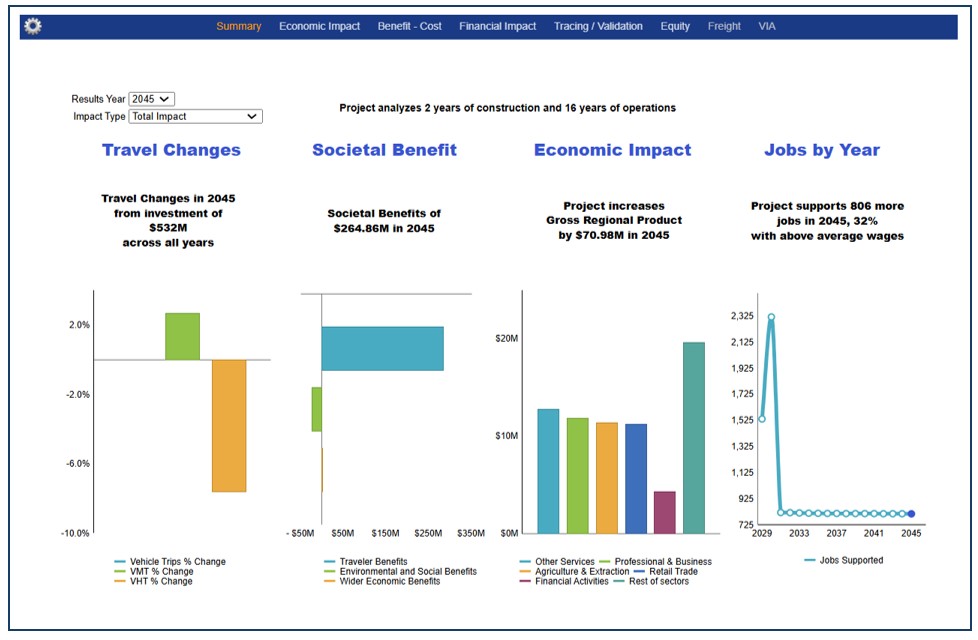
Travel Changes. Bars indicate whether vehicle trips, miles traveled, and hours traveled rose or fell between the base and project alternatives.
For example, a rise of 2% in the Vehicle Miles Traveled (VMT) bar means there were more miles traveled in the Project alternative compared to the Base alternative. A drop of 7% in the Vehicle Hours Traveled (VHT) bar means there were fewer hours traveled in the Project alternative (which will translate to time savings).
Societal Benefit. Bars indicate the social benefits enjoyed in the Project alternative as compared to the Base alternative, broken out by traveler benefits, environmental social benefits, and wider economic benefits.
An increase of $300 million in traveler benefits means travelers were better off in the Project alternative, while a drop of $40 million in environmental and social benefits mean there were some disbenefits in the Project alternative.
Economic Impact. Bars indicate the increase in Gross Regional Product (GRP) in the Project case, by industry sector. For example, the blue bar at about $10 million indicates an increase in about that much GRP for the Project alternative (vs. the Base alternative).
Jobs by Year. The graph shows the number of extra jobs supported by the Project alternative over the Base alternative.