2024-12 Store Region Definition
TREDIS has new features to store and recall Regional Definitions so they may be reused between projects, allowing you to quickly select a multi-county regional definition or multi-regional definition you've previously stored without having to click each county in the checkmark lists or on the map. Users may want to store definitions when they will be used frequently, especially across users or in a common business process.
Regional Definitions
A Regional Definition in TREDIS is everything selected on the Regions page of TREDIS at the point you select Build Model. It might involve a single region or multiple regions, but there is only one definition associated with any given TREDIS project. Each region may include one or more counties (or custom components).
Like projects, Regional Definitions are stored at the contract level, so that other users that share a license with you can use them, too, making it easier to create projects that share the same geographies.
Storing a Definition
"Storing" a definition for use across projects is distinct from "saving" it for use in a single analysis.
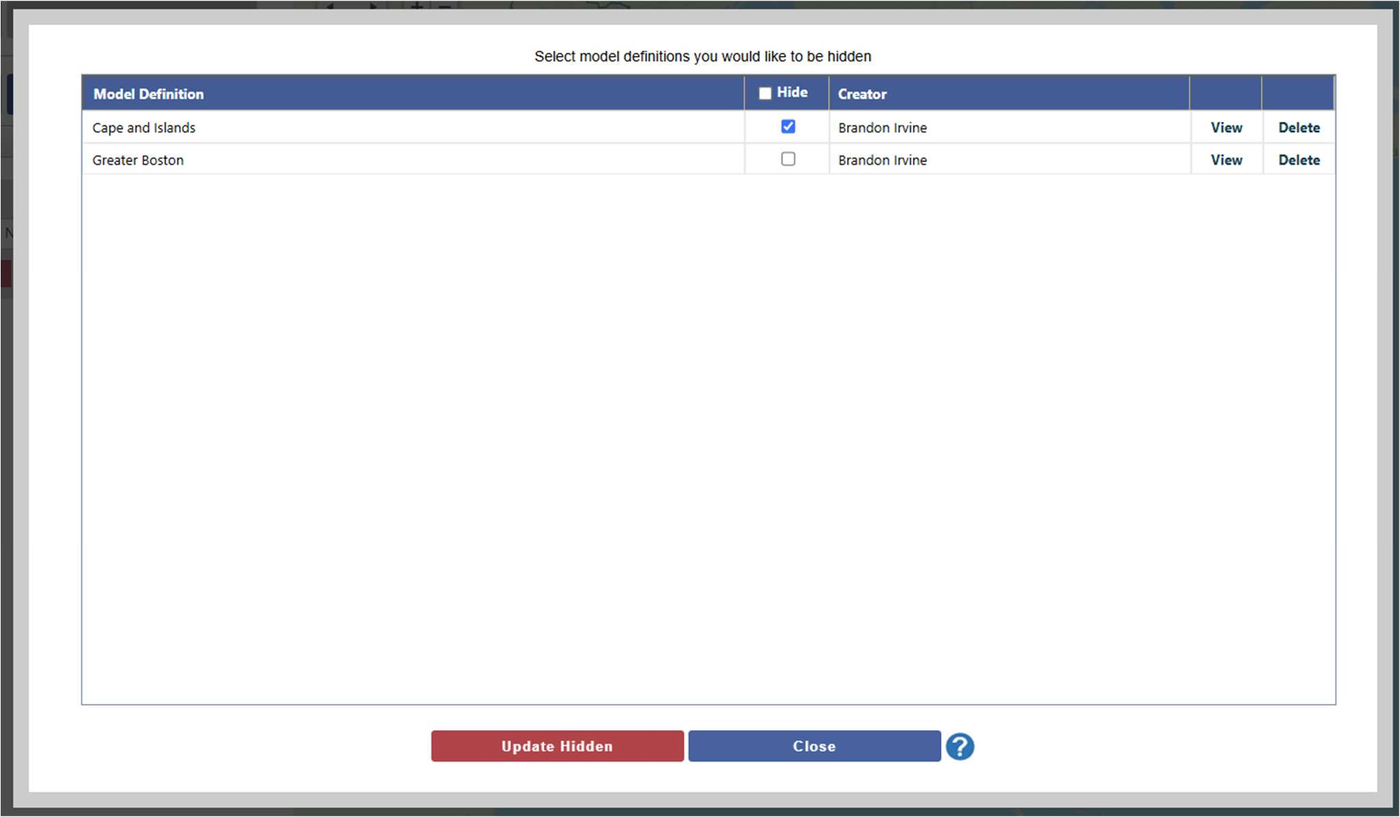
To store a Regional Definition, go to the Regions page for an existing project or a new one. A Regional Definition must be saved before it can be stored. For an existing project, you will probably have already saved the Regional Definition, and the Save button will be greyed out (as in Figure 1). For a new project, you will want to create a Regional Definition as you normally would and click Save.
Once you've saved a Regional Definition, click the Store Current Definition button to store it. (See the arrow in Figure 1). A window prompt will ask you for a name (as in Figure 2). Once you enter it and click Create, this Regional Definition will now be available in the Select Existing Definition dropdown to you and other users of your contract.
Figure 1. Store Current Definition Button
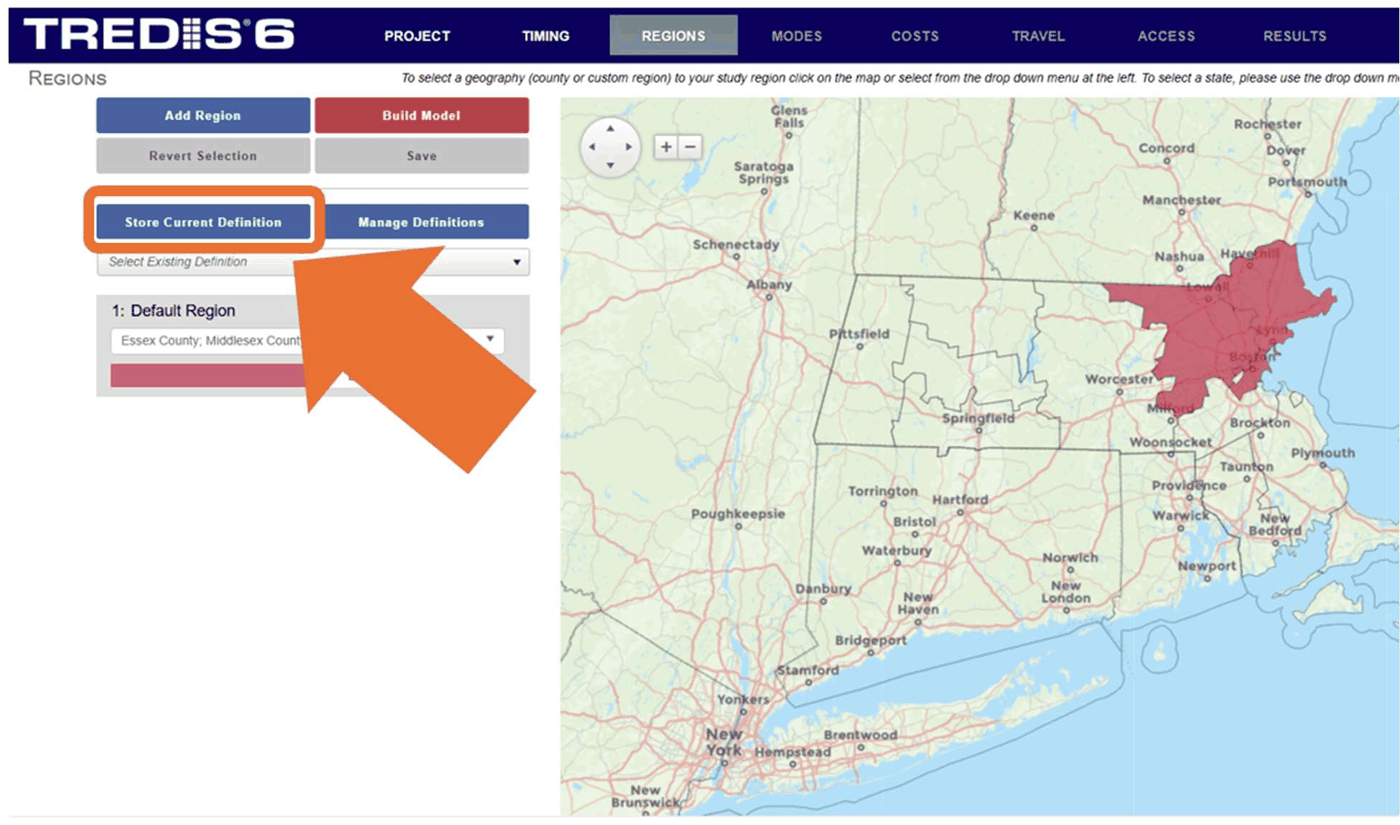
Figure 2. Store Definition Naming Window
Selecting an Existing Definition
If you want to use a definition that has already been stored, you can recall it by clicking on the Select Existing Definition dropdown, which can be found directly under the Store Current Definition button.
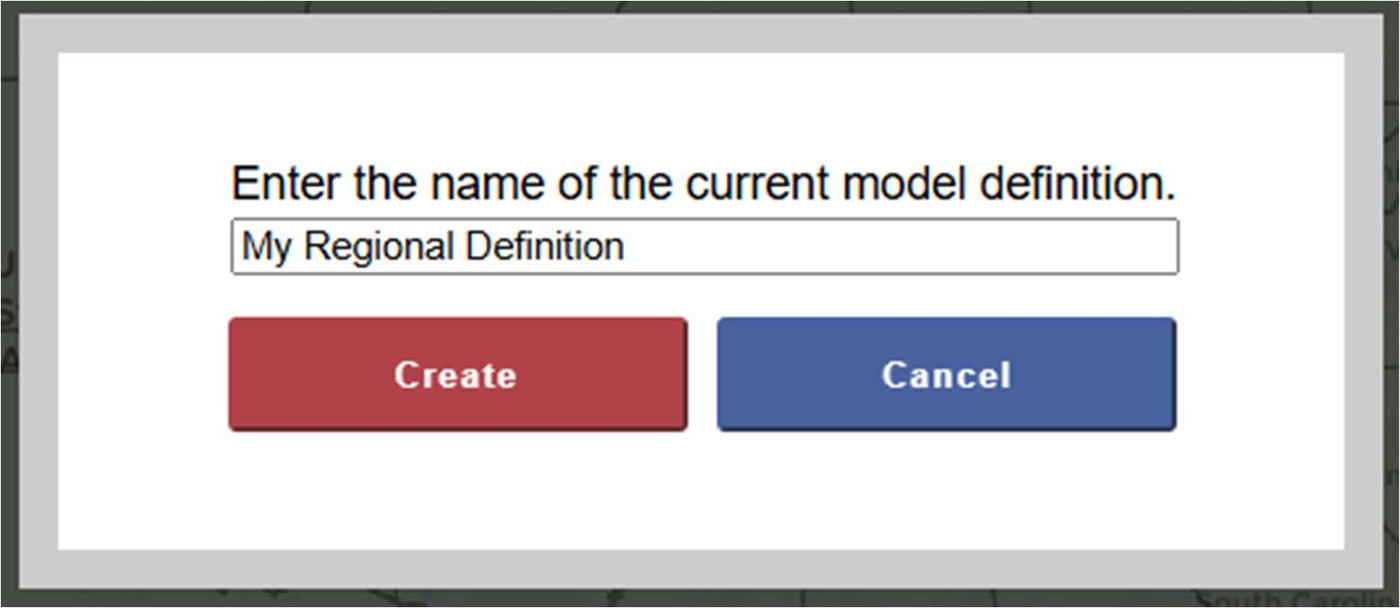
When a Regional Definition is selected, TREDIS will prompt you with a warning that your current definition (saved or only selected, whether a project-specific definition or other stored definition) will be discarded to load the selected Regional Definition (see Figure 3). Select Yes to continue and load the Regional Definition selected.
Figure 3. Warning Window for Recalling Regional Definition
Managing Definitions
Definitions are stored at the contract level, which means they're associated with the data year in the contract name. Other users on the same contract can select and use them.
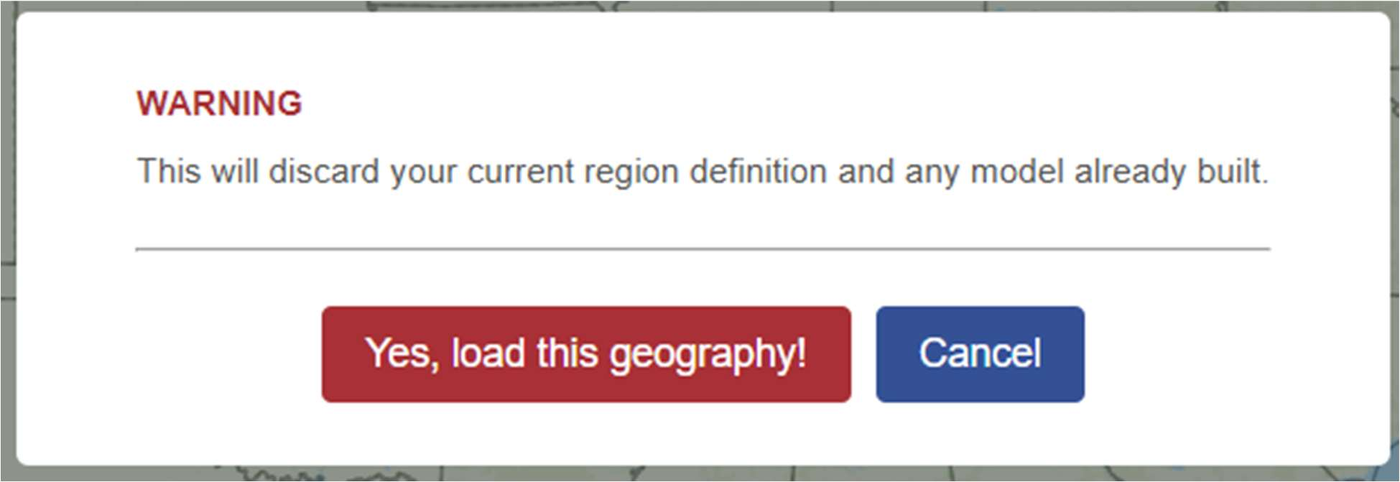
To see all the Regional Definitions associated with the contract, click the Manage Definitions button to open the Manage Definitions window shown in Figure 4.
To hide definitions (so they don't appear in the Select Existing Definitions dropdown), click the Hide checkbox on the appropriate row, then click Update Hidden. To see definitions that were previously hidden, uncheck the boxes and click Update Hidden.
To view the counties (or county equivalents) associated with a Regional Definition, click View on the row of the definition to open a window with that information.
Finally, if you are the creator of a Regional Definition, you may click Delete to do so. A prompt will confirm your choice before the Regional Definition is actually deleted. Other projects using the definition will not be affected analytically, but their Definition will be considered project-specific and unlabeled.
Figure 4. Manage Definitions Window