2026-02 Multiple Results Export
TREDIS now supports the exporting of a single Excel workbook with multiple sheets of results tables for a single analysis or multiple analyses. Users can create a workbook template to reuse across their projects, selecting which of the many reports they want to include in their workbook, as well as setting the options that affect the contents of those reports. Using the template, then the user can download all the reports at once.
This significantly increases the ease with which users can store and compare results of their projects outside TREDIS. Previous options were to use the Project Comparison tool, the Multi-Project Compare tool, the Summary Results export, or to open each project of interest in the online graphical user interface, navigate to the report of interest and export the individual report.
This new capability will now allow users to store all TREDIS results offline in case they are needed later at a time when they are no longer available in TREDIS.
Exporting Multiple Reports for an Individual Analysis
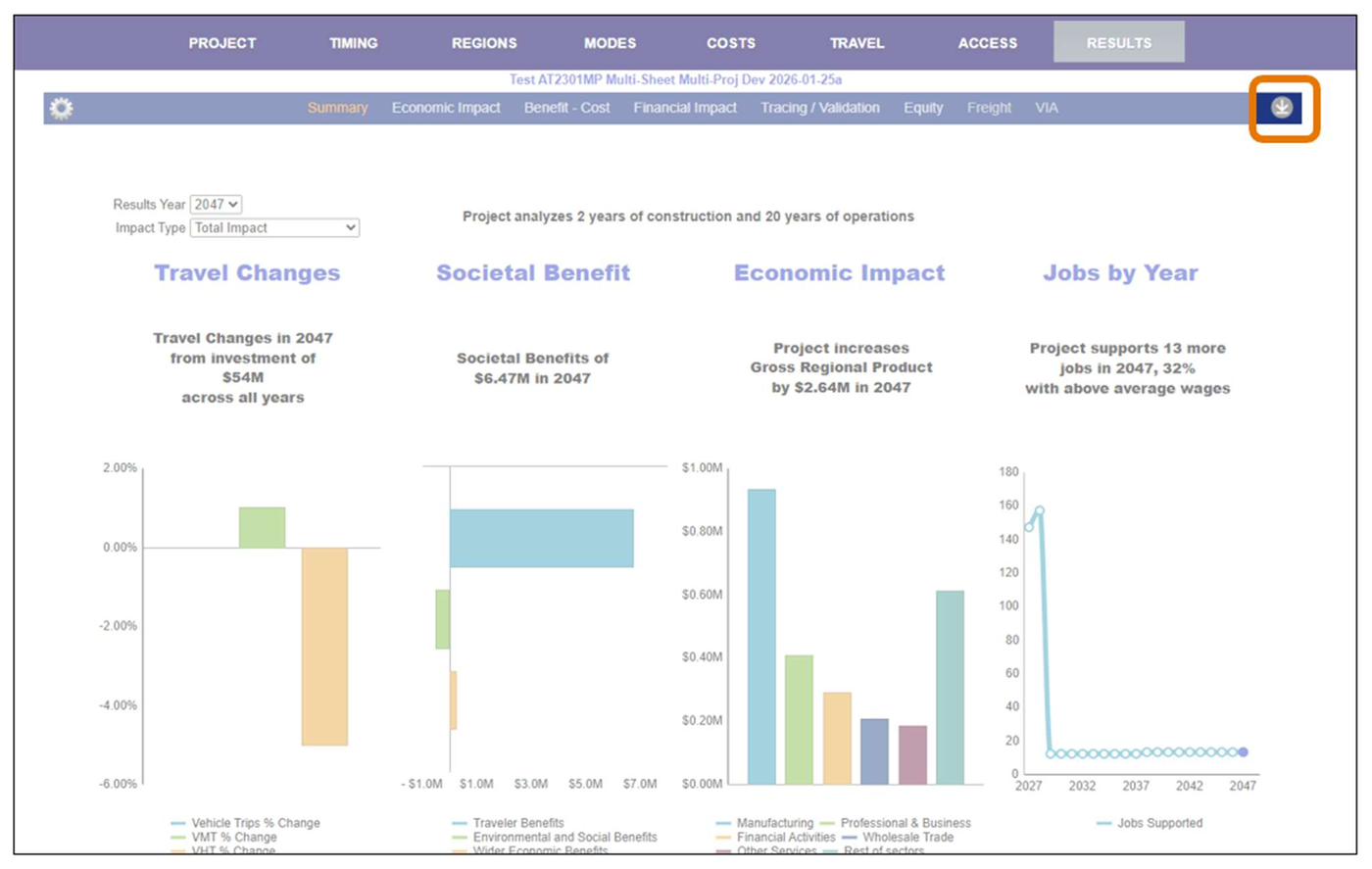
Once results are run for an analysis, you will now see a Multi-Report icon (a downward arrow) on the far right of the bar running along the width of the screen, as highlighted in Figure 1. This icon is available from any of the Results subpages.
Figure 1. Results Screen with Multi-Report Button Highlighted
Clicking on this icon will open the Multi-Report Interface shown in Figure 2. From this page, several TREDIS reports can be selected for export to a single Excel workbook.
Reports are produced based on a template, so before TREDIS can produce a report, a template needs to be saved. For example, in Figure 2, the reports for Total by Industry, Benefit – Cost Overview, Value of Benefits by Year, Cost Savings by Type, and Equity Context have been selected. In this example, the default settings (adjusted using dropdowns at the top) have been used.
Figure 2. The Multi-Report Interface
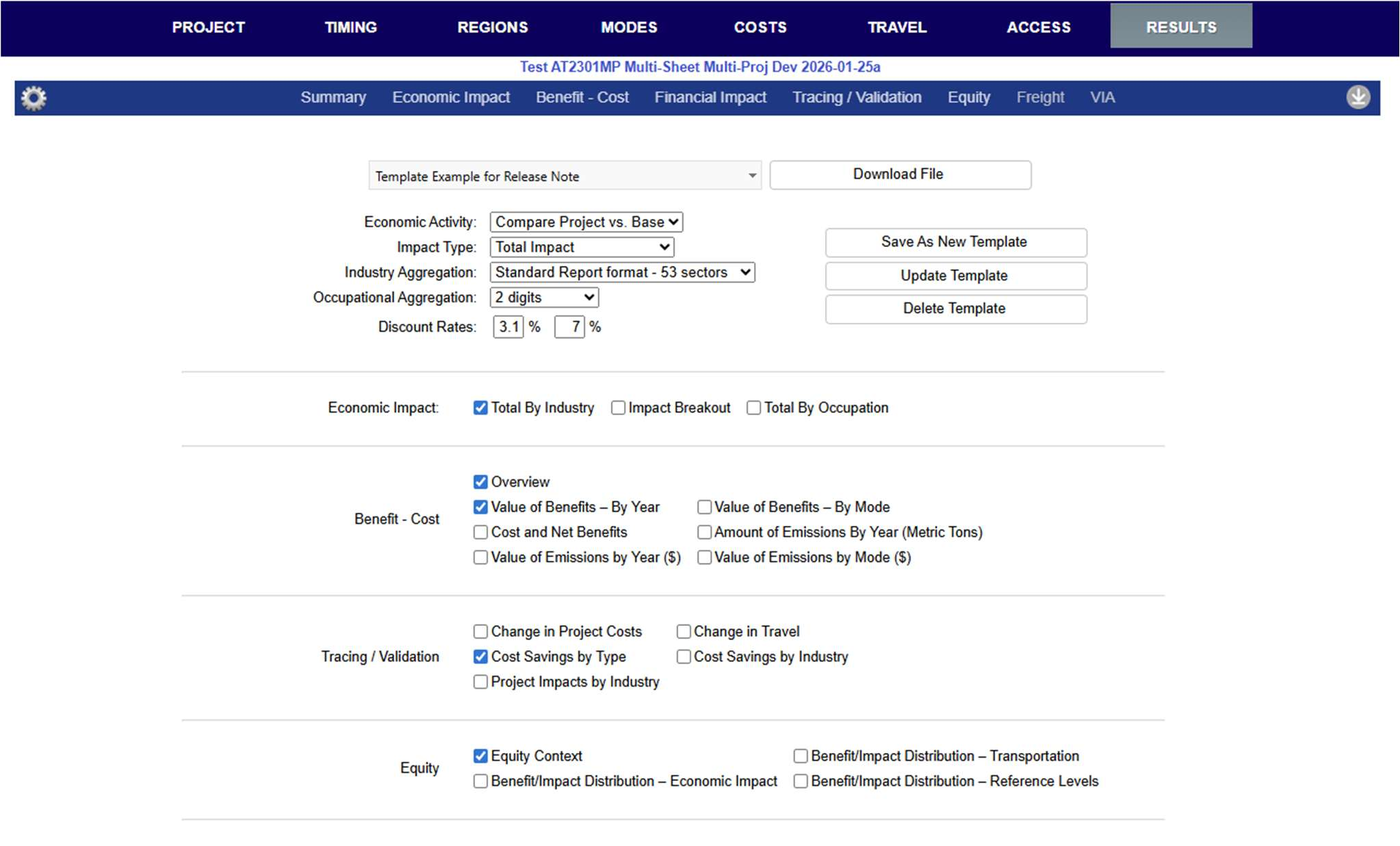
The template has already been saved in Figure 2 as Template Example for Release Note. Once you save a template, you will be able to use it from any project's Results page or from the Project page, as described below. The name is provided in the pop-up that opens when you click "Save As New Template." If you click "Update Template," the settings for the selected template will be overwritten with your current selection.
Once you have saved a template, an Excel workbook based on this template can be prepared. Clicking Download File will start the file preparation process. When completed, the file will be downloaded to your device's Downloads folder or other default location.
You may need different batches of reports for different business processes, so TREDIS can save and reuse a template. Once a template is added, it can be accessed via the dropdown at the top of the interface, next to the Download File button.
Exporting Multiple Reports for Multiple Analyses
The same multi-report export functionality can be applied to multiple projects at the same time.
From the Project page, click on the Group Options button at the bottom to access the Group Options window (see Figure 3). The buttons on the right have been renamed and a button labeled Export Detailed Results has been added.
Figure 3. The Group Options Window
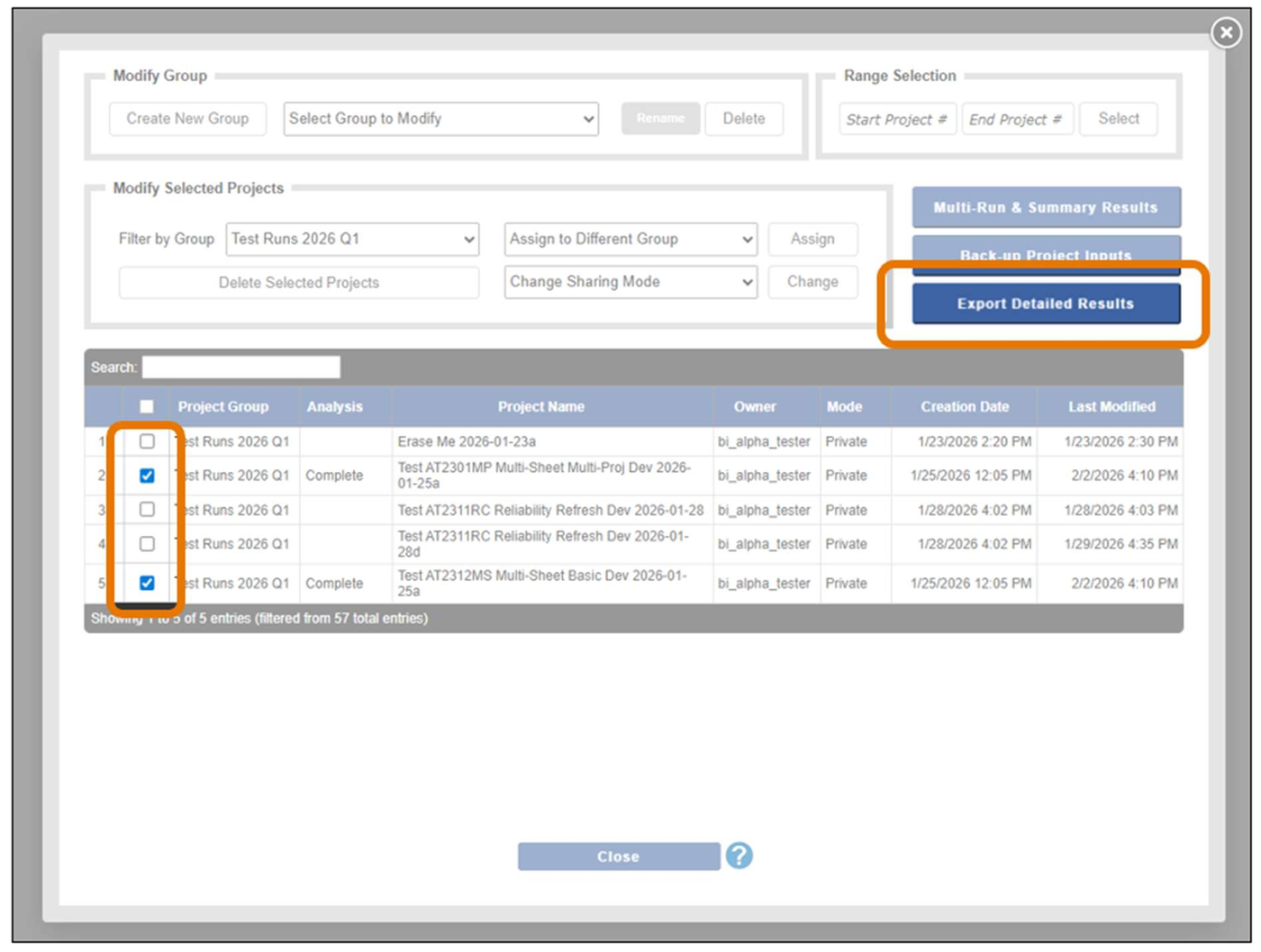
Select any number of completed analyses to be exported, then click Export Detailed Results. This will open the Multi-Report Interface shown in Figure 2 and allow you to produce reports for all the analyses you chose on the Group Options page. The project names will be indicated in each sheet of the resulting Excel workbook, on the far left, in the Project Name column.
Just as with a single project, you can manage report templates from this interface, change settings on individual report templates, and click Download File to export to Excel.
Using the Multi-Report Export Workbook
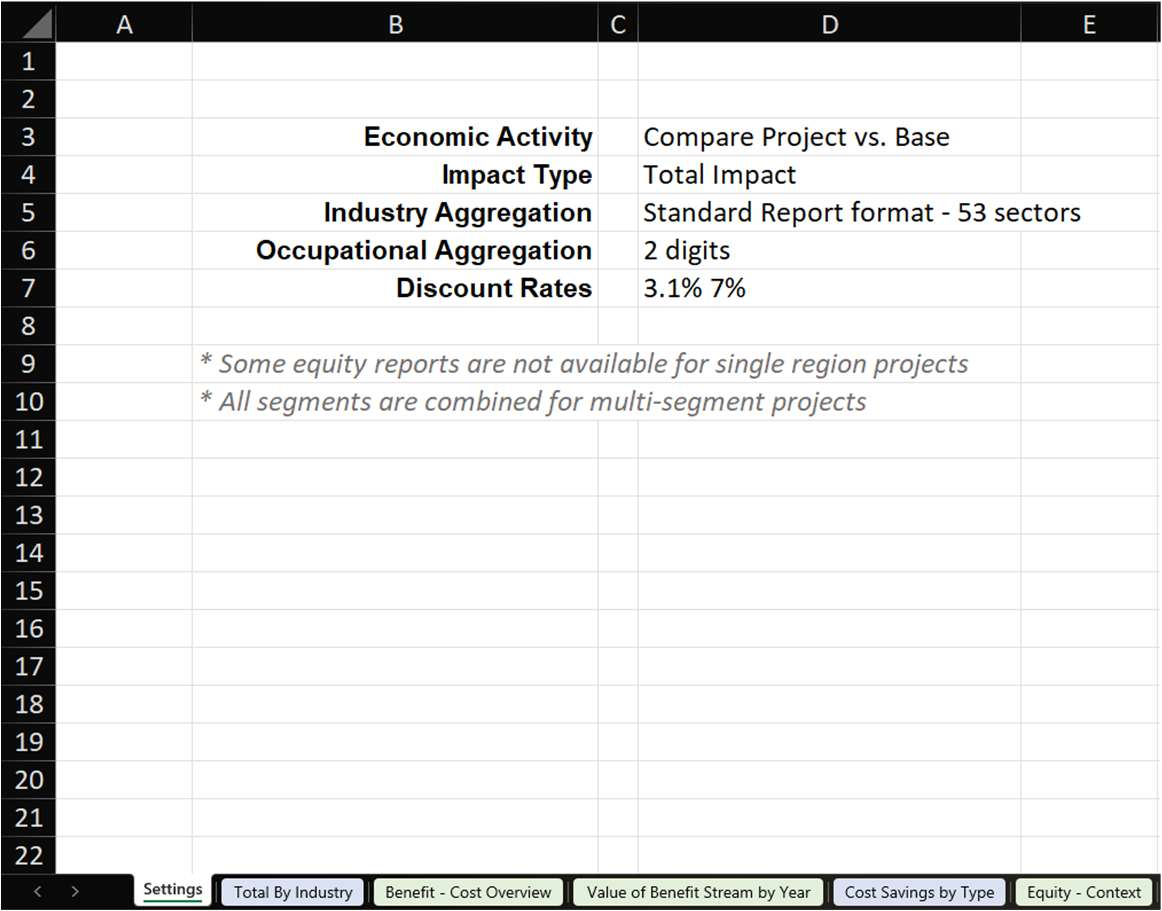
The Excel workbook that you download will always include a Settings sheet, as seen in Figure 4, that indicates what settings were applied to produce the results in the exported file.
Figure 4. Settings Sheet in the Export Workbook
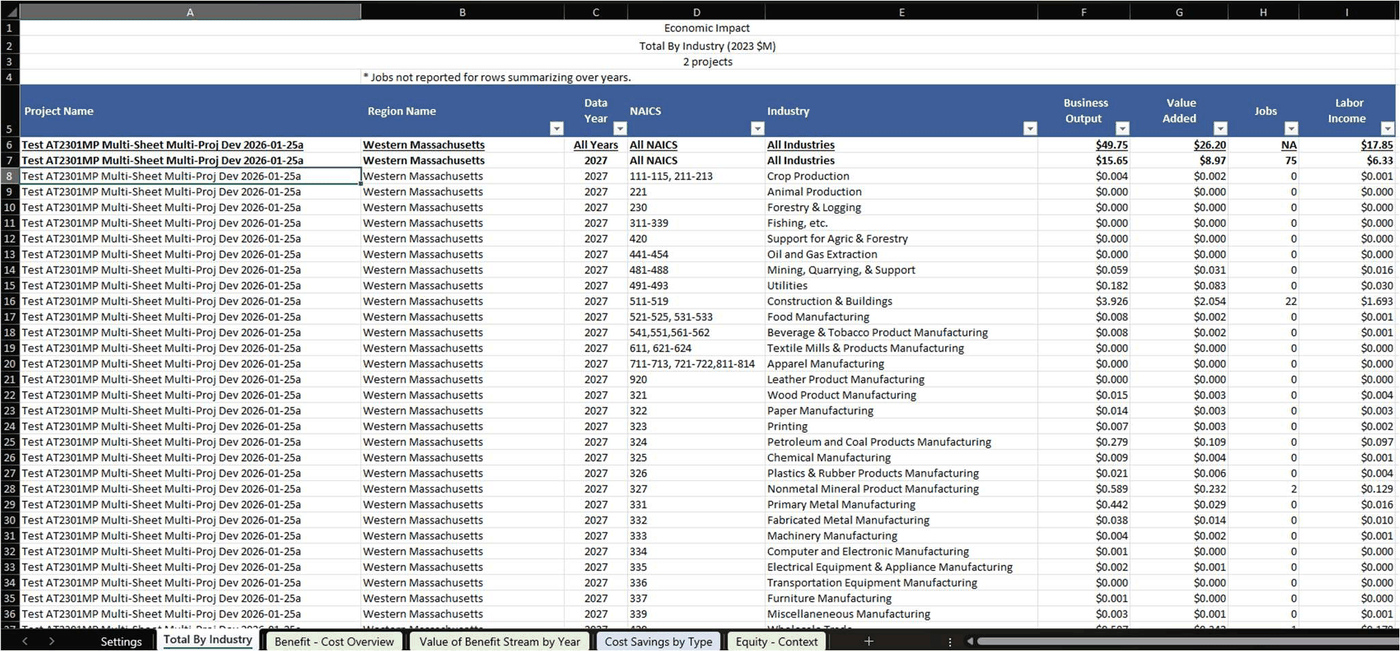
Each other worksheet represents a report. Separate projects are reported in the same sheet but are differentiated by the Project Name column, where the project name is given for the results. In Figure 5, you can see the results for the first project selected in the Group Options interface. Scroll down further in a workbook to see results for the other projects selected, or add filters to the column headers to focus on specific projects or attributes.
Figure 5. Total by Industry Results Sheet